Twilio Notification
Twilio Notification
Twilio allows you to send SMS messages from your Hubitat Elevation hub based on Rule Machine rules and Hubitat Elevation app notification settings.
Setup Overview
This section provides a brief summary of the required steps. For full step-by-step instructions, consult the Setup Details section below.
- Visit twilio.com to obtain a user account
- This provide you with an Account SID and Auth Token (a string of long random letters and numbers), as well as a unique phone number.
- On your Hubitat Elevation hub, create one (or more) virtual devices and assign the Twilio driver to them.
- Paste the two Tokens you received when creating your Twilio account, then Select Save Device.
- Choose the phone number to send from and enter the phone number to send SMS notifications to.
- Select Save.
- Use the Twilio device(s) in your Rule Machine rules and other Hubitat Elevation apps to send SMS notifications.
Setup Details
-
Sign up for a Twilio account at twilio.com.
-
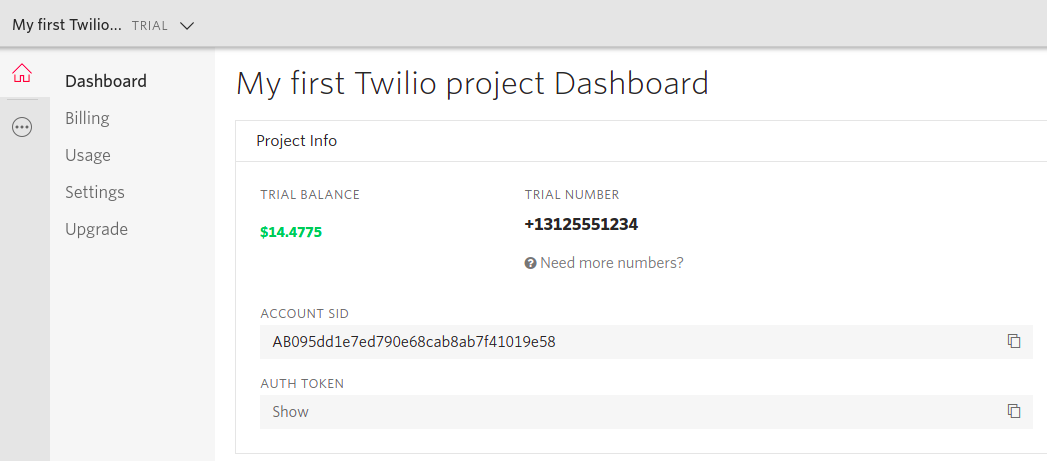
Navigate to https://www.twilio.com/console to retrieve your Account SID and Auth Token
-
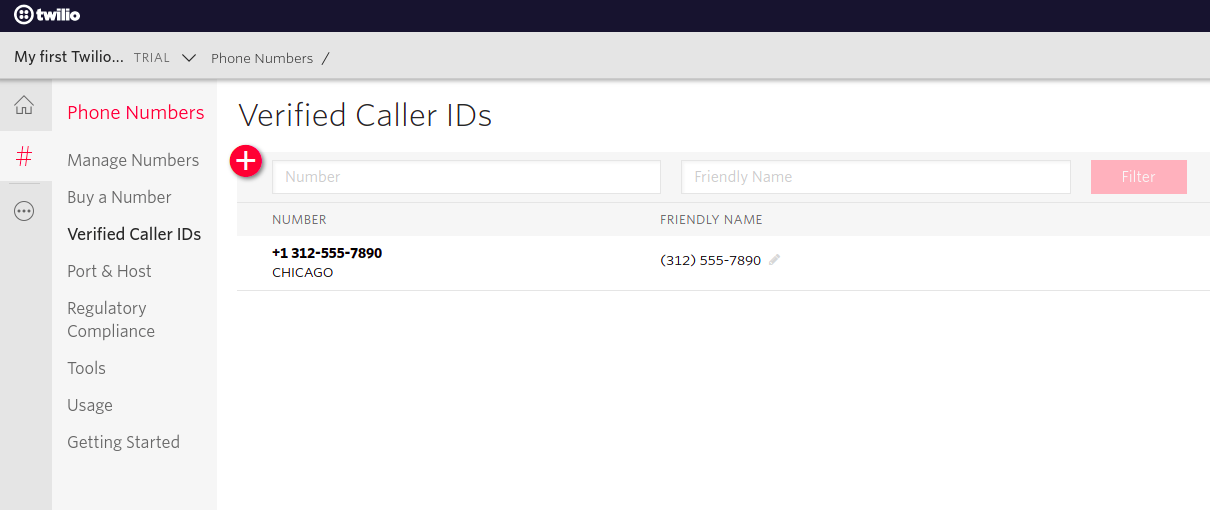
Authorize a phone number to send messages to using https://www.twilio.com/console/phone-numbers/verified
-
On your Hubitat Elevation hub, select Devices, then Add Device, then Virtual.
-
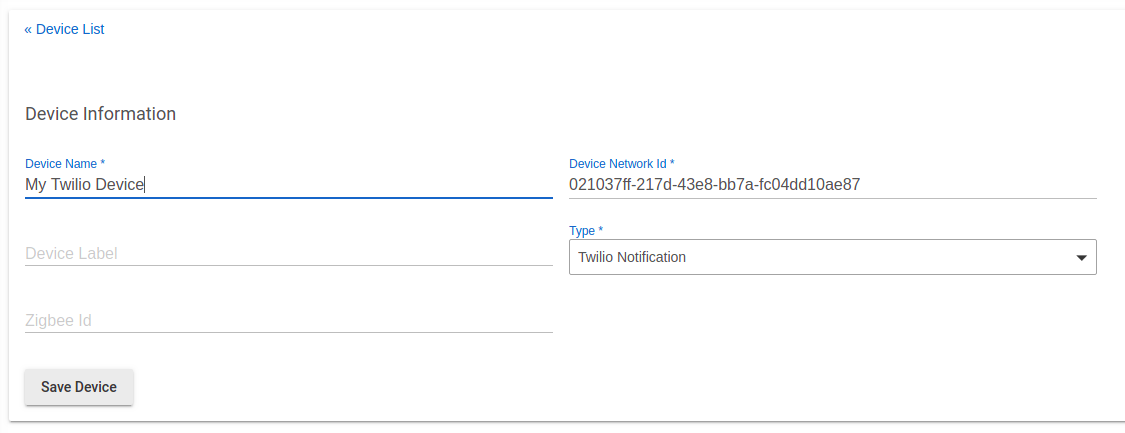
In Device Name field, enter the name you want to use for this device, (e.g. My Twilio Device). For Type, choose Twilio Notification.
-
Select Save Device.
-
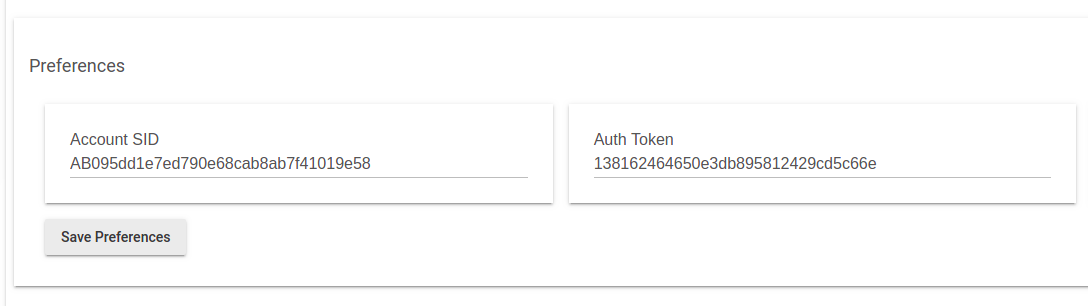
The device details page will open and you will enter the Account SID and Auth Token from your Twilio account in the fields as shown below.
-
Press Save Preferences
-
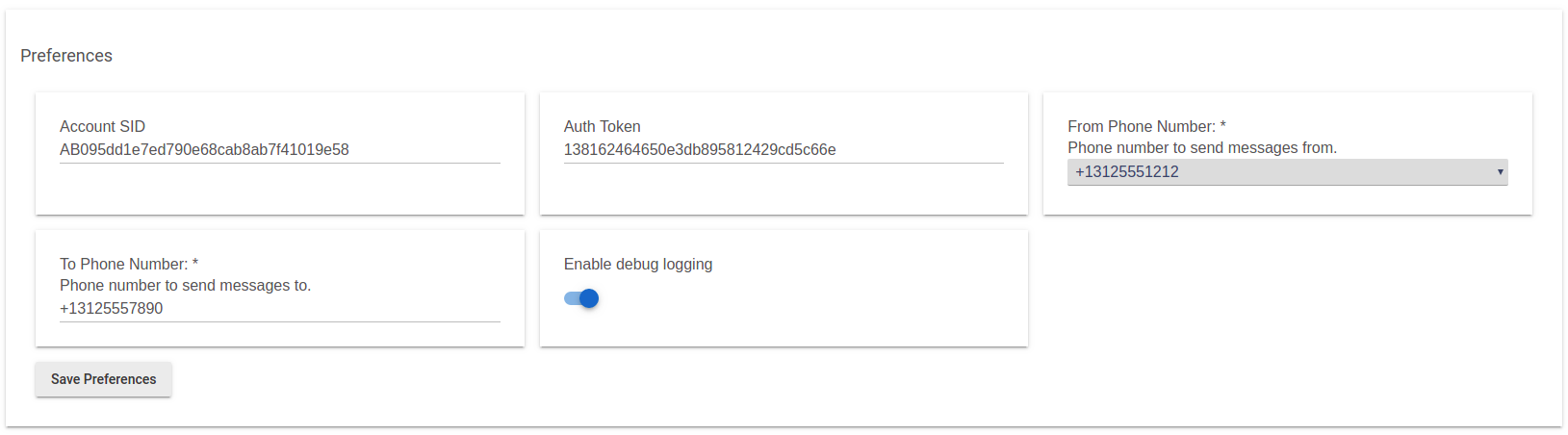
The page will reload and you will be given the option to select the From Phone Number which will be the same as the one listed on your Twilio Dashboard.
-
In the To Phone Number field, enter one of the phone numbers that were authorized to receive SMS messages in Step 3
-
Select Save Preferences
-
The device is now able to be used by Rule Machine rules and Hubitat Elevation apps to send SMS notifications.
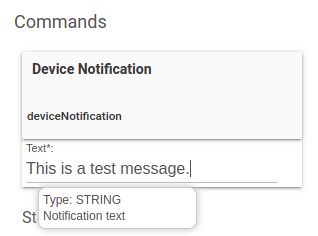
NOTE: You may test your setup by entering a message in the text field below the Device Notification button of the Twillo Device details page. Press the Device Notification button to sent the test SMS message.