Basic Rules
Basic Rules
The Basic Rules app delivers easy to use home automation to anyone just getting started, while at the same time offering features experienced users will find handy.
How it works
Each Basic Rule you create follows the simple approach:
When THIS trigger event happens, do THAT action.
- NOTE: To keep things easy to use, Basic Rule will only offer choices for triggers events and actions for the actual devices you have installed in your Hubitat Elevation system.
Events that can trigger a Basic Rule:
- Time of day, with Sunrise and Sunset options
- Motion, Contact, Presence, Acceleration or Vibration sensors
- Water - Leak, Smoke or Carbon Monoxide detectors
- Temperature, Humidity or Illuminance sensors
- A switch turning ON or OFF, a button being pressed, or Modes changing.
Actions Basic Rule can perform in response to a trigger:
- Turn switches ON/OFF or Toggle, Set a dimmer level, Adjust color, or color temperature of lights.
- Lock/Unlock locks, Open/Close valves, or push a button.
- Send notifications, speak messages, or set the Mode.
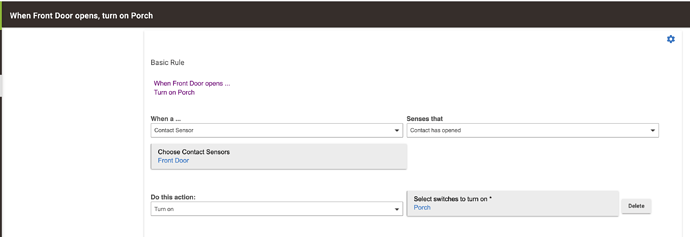
Example of a Basic Rule when a contact sensor opens:
Easy Automations
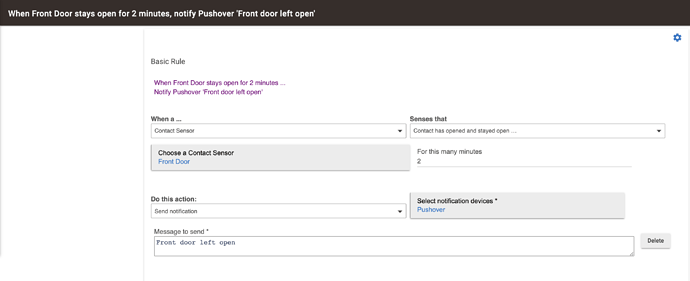
Sometimes just having a device trigger a single action as shown above isn't all that you might want. For example, you might also want a message to notify you not only when the door has opened, but has also been left open. This is very easy with Basic Rule, but the best way to learn what you can do is to play around to discover what you can create!
Example of a Basic Rule notifying you when a contact sensor opens, and stays opened for more than two minutes:
Multiple Trigger Devices
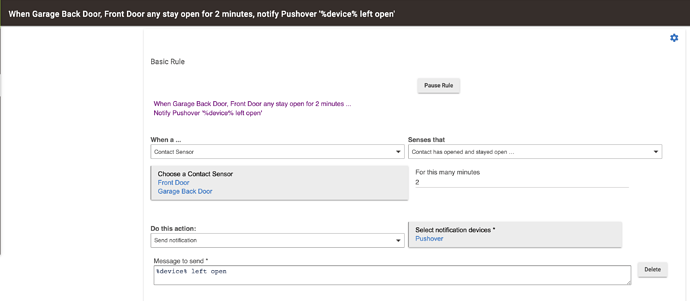
Basic Rule allows you to select multiple devices for When a ... Trigger event happens. Looking again at the example above, adding two or more contact sensors could notify you when any of multiple doors have been left open.
Multiple device options include:
- Any motion sensor active or inactive
- Any contact sensor opened or closed
- Any vibration sensor active or inactive
- Any presence sensor detects arrival or departure
- Any switch turns on or off
Adding multiple temperature, humidity and illuminance sensors to a Basic Rule will generate a trigger event when any device detects a value greater than, or less than a value you specify.
In this next example, multiple contact sensors can trigger a notification, but adding %device% instead of a specific device name will send a notification with only the contact sensor that triggered the Basic Rule included in the message.
You can also use %value% to fill in the last event value from a temperature sensor when it rises above or falls below a value you specify, and you can include the current date and time the event occurred by adding %date% and %time%.
More Actions
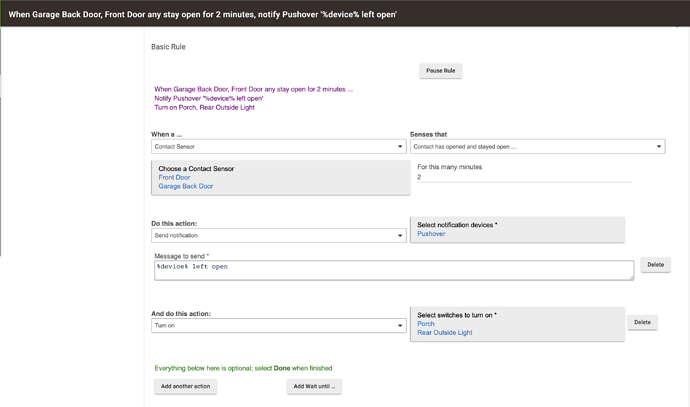
Because you may want more than one thing to happen when a Basic Rule runs, you can easily add more actions. Actions can be changed or removed anytime.
Wait Until ...
Next to the Add another action button is the Add Wait until ... button. This option opens up the possibility of your Basic Rule waiting for another event before proceeding to run additional actions. With this option your rule can both turn ON the lights in response to an event, and also turn them OFF later when another event occurs. Wait will be cancelled if the rule is triggered again before the time has elapsed, or the Wait event trigger has occurred.
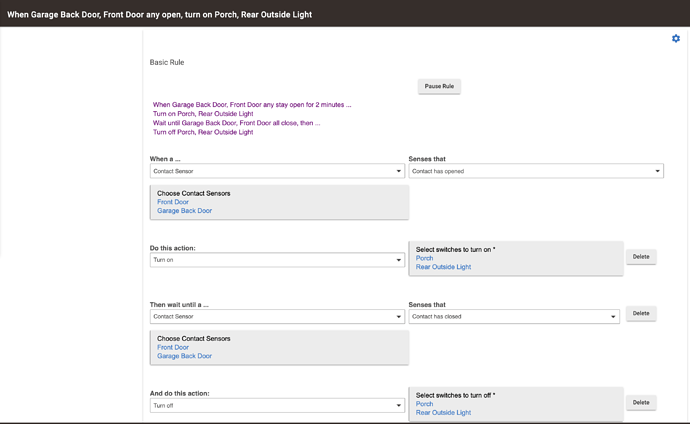
Restrictions
Suppose you want the "Any Door Left Open" rule above to run only at night. Simply adding a Restriction will limit your Basic Rule to only performing the actions when the specified conditions are true.
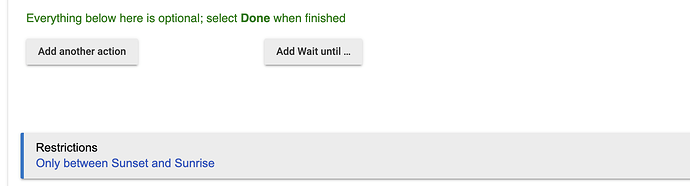
Available restrictions include:
- Only between two times
- Only on certain days of the week
- Only when mode is one of a selected list of mode
- Only when illuminance is greater or less than a selected value
- Only when not disabled by a switch being either ON or OFF
- NOTE: When a Basic Rule is restricted, Restricted will appear next to the rule name in both the app, and in the Apps list.

- NOTE: When a Basic Rule is restricted, Restricted will appear next to the rule name in both the app, and in the Apps list.
Basic rule offers two options for restrictions, Restrict trigger and pending actions (the deafult) or Restrict only the trigger. The trigger is the first line of your Basic Rule, which will never cause the rest of the rule actions to run when restricted. If Restrict trigger and pending actions, additional actions will stop running when the restriction comes into effect rather than continuing and simply not being eligible to start the rule again (until the restriction is no longer in effect).
Additional options
-
Change the Basic Rule name will let you rename your rule if you don't like the automatically generated name.
-
Enable logging will allow you to examine the logs and see each step the rule takes when it runs.