Ecobee Integration
Ecobee Integration
The Ecobee Integration app allows you to control your Ecobee 3 or later smart thermostat from Hubitat Dashboard or use the thermostat measurements and presence detection to create automations with Rule Machine®.
NOTE: Many Ecobee models are also compatible with Apple HomeKit (consult HomeKit documentation from Ecobee for more). On hubs that support the HomeKit Controller integration, pairing the thermostat that way offers an alternative with local connectivity, although either method can work, according to your preferences.
To get started, you'll first need to register your thermostat with the Ecobee app or web portal before you can add it the Hubitat Ecobee Integration app.
Installing the Ecobee Integration App
-
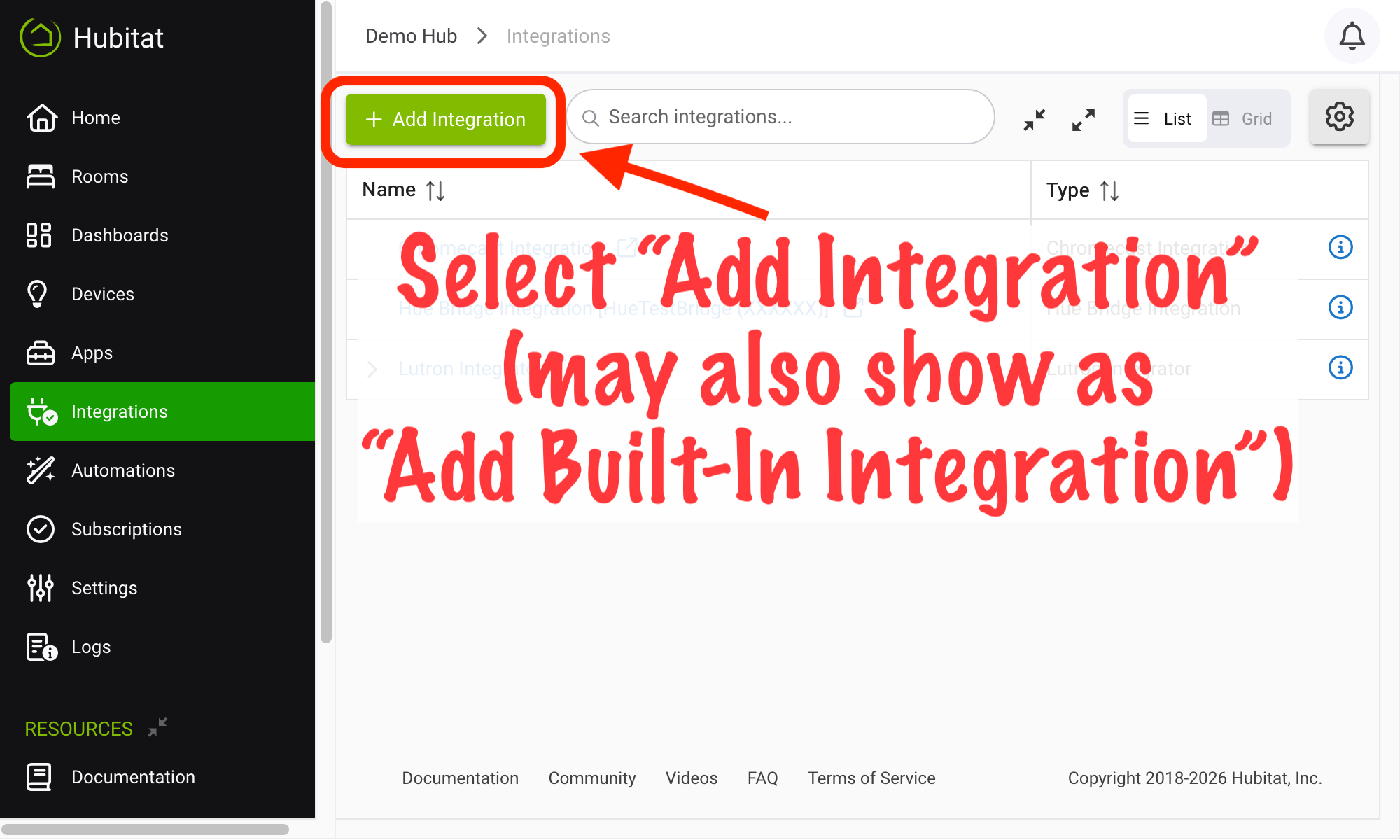
From the sidebar of your hub, navigate to Integrations and select Add Integration or Add Built-In Integration:
-
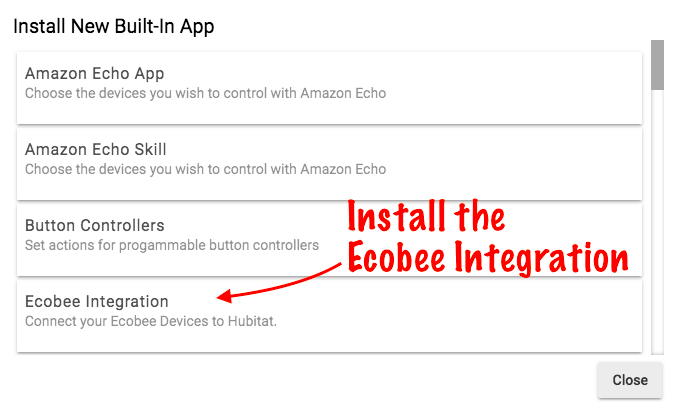
Choose the Ecobee Integration from the list of Hubitat Elevation Built-In Apps
-
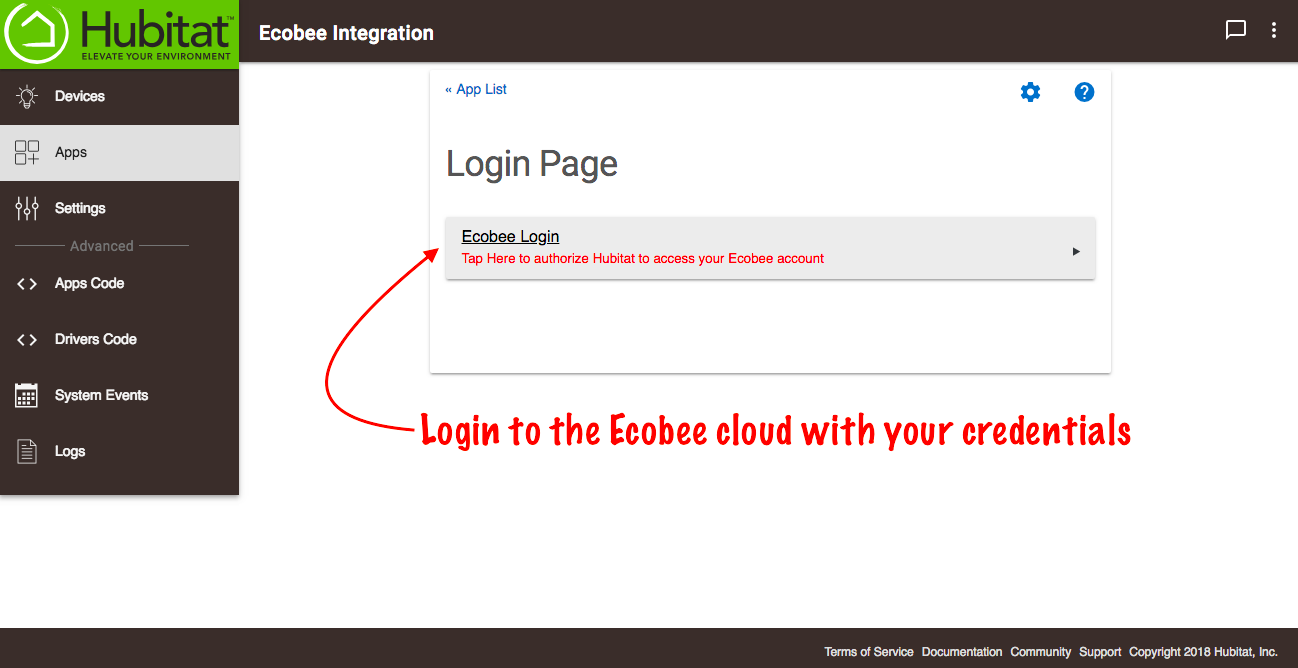
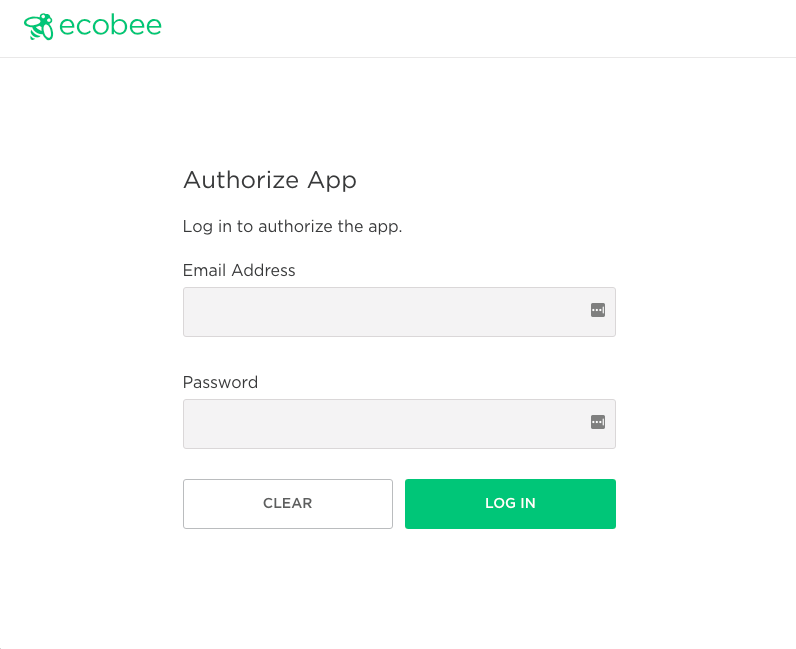
Login to the Ecobee Integration app with the same credentials you use for your thermostat.
-
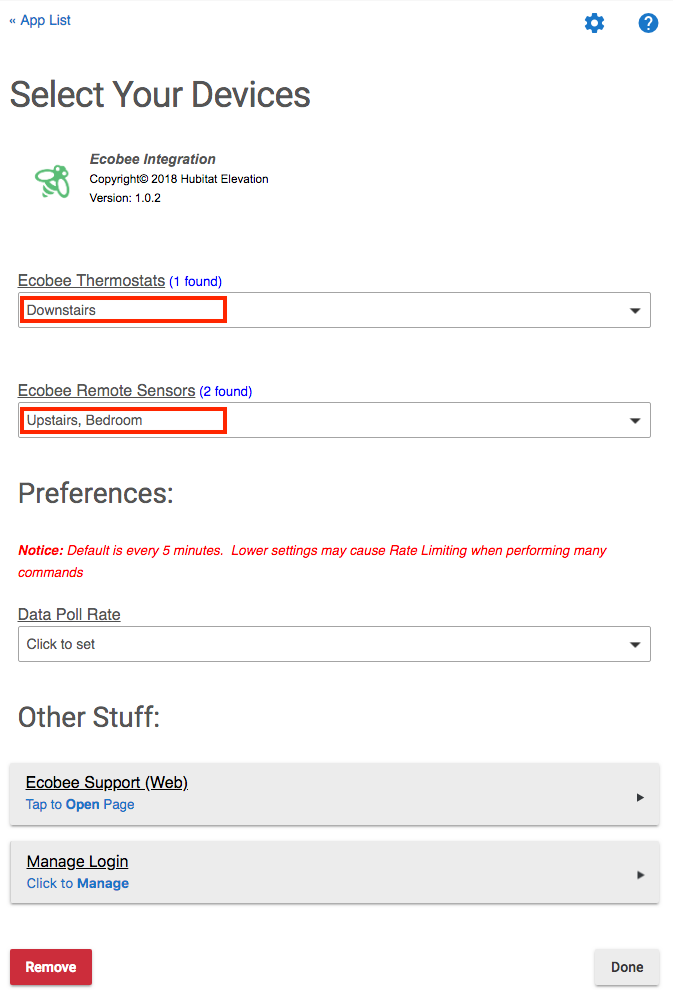
Confirm your Ecobee 3 or later thermostat(s) and any available remote sensors appear in the Ecobee Integration app preferences
Using your Ecobee Integration with Hubitat Elevation Rule Machine or Hubitat Dashboard
Once your thermostat has been added to your hub, you can begin using it in your automations or access it directly from its device detail page on your hub, from Hubitat Dashboard or the mobile app, or other methods.
Available Rule Machine actions include:
- Thermostat mode: Auto, Heat, Cool, Off and Emergency Heat (for heat pump systems).
- Set heating point: Your desired heating temperature.
- Adjust heating point: The temperature difference from the heating set point where the system will call for heat.
- Set cooling point: Your desired cooling temperature.
- Adjust cooling point: The temperature difference from the cooling set point where the system will call for cooling
- Fan setting: On or Auto.
Other commands may be availabe via Rule Machine Custom Actions.
Note: Hubitat Elevation thermostat drivers may show certain options that do not apply to all thermostats.
- The following Ecobee driver settings are supported: Auto, Cool, Heat, Emergency Heat (for heat pumps), Fan Auto, Fan On, Off (System Off), Refresh (Poll the parent Ecobee app, Resume Program, Set Away, Set Cooling Setpoint, Set Heating Setpoint, Set Thermostat Fan Mode (On and Auto), Set Thermostat Mode (Off, Auto, Heat or Cool).
- Note: Certain custom actions are available for other thermostats, but are not valid for Ecobee. These include fanCirculate and setSchedule