Google Home
How to share devices from Hubitat to Google Home
Google Home (Integration App)
Your Hubitat Elevation integrates easily with Google Home using the Google Home app on your mobile phone, and the Google Home app in your Hubitat Elevation hub. Google Home supports switches, dimmers, thermostats, RGB, RGBW and ColorTemperature bulbs. This allows control with the Google Home app, Google Assistant, or Google Gemini.
NOTE: This integration allows Google Home to control switches, dimmers, thermostats, and bulbs that have been joined to your Hubitat Elevation hub, but the reverse is not possible. Devices that have been added directly to Google Home or Google Assistant cannot be shared with your Hubitat Elevation hub.
Authorizing Hubitat for Google Assistant
-
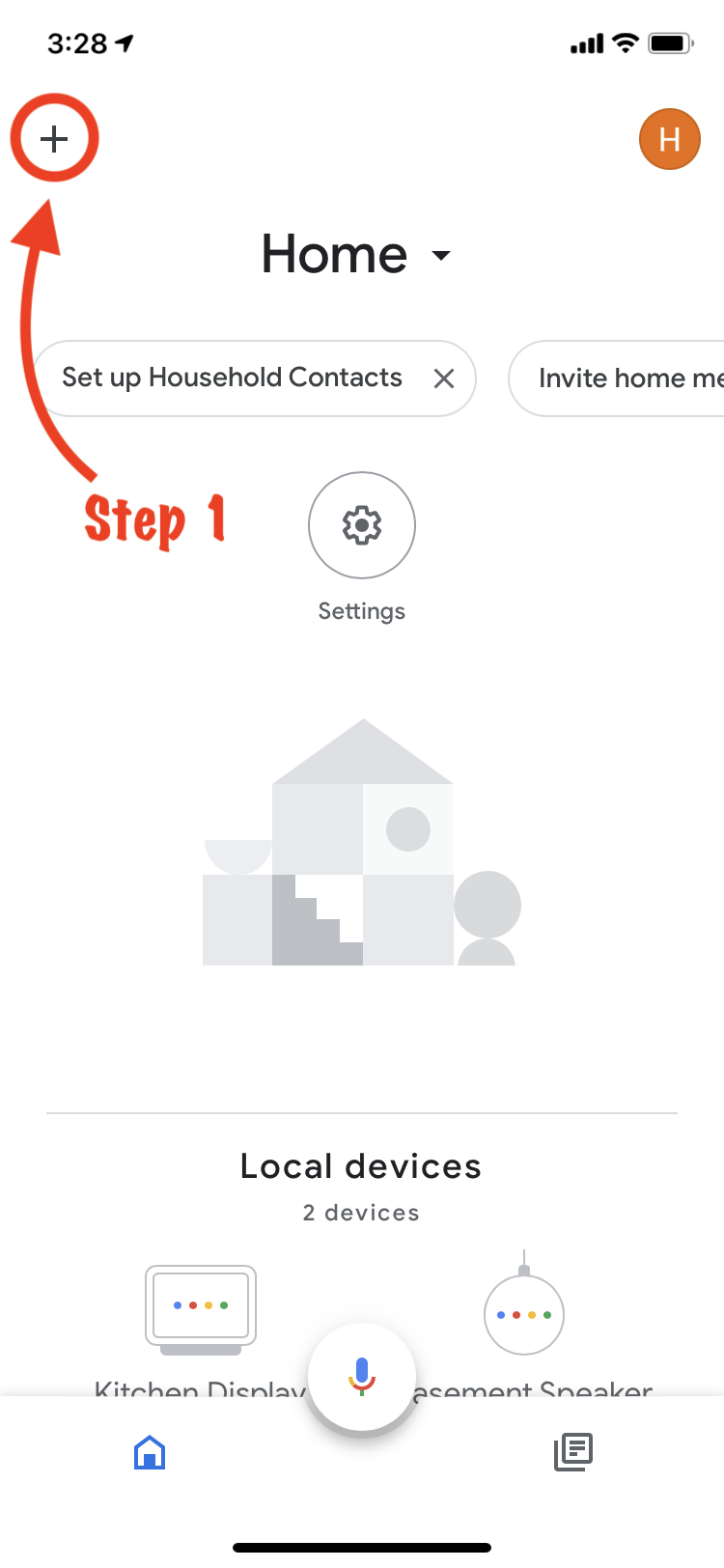
Begin by opening the Google Home app on your mobile device and select the + icon at the top-left.
-
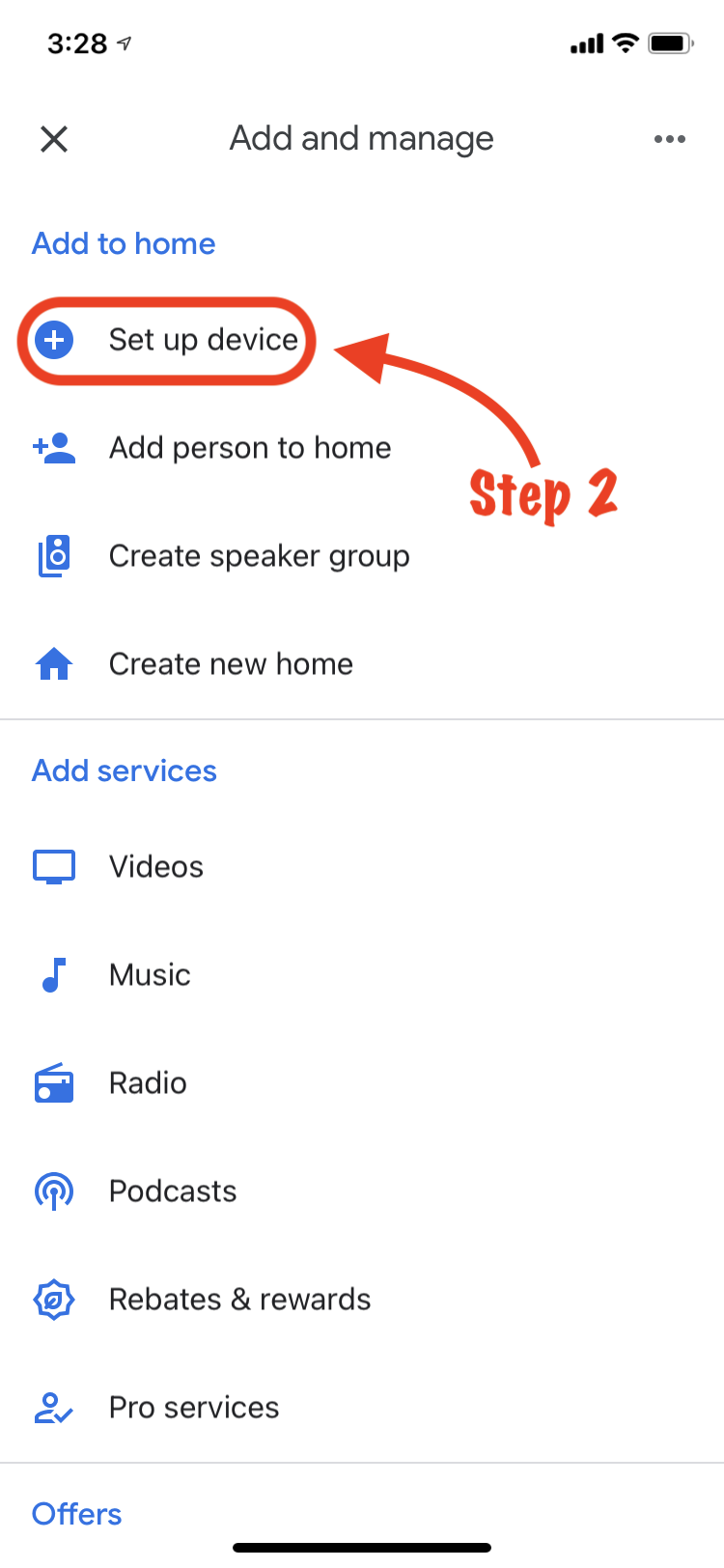
Select Set up device.
-
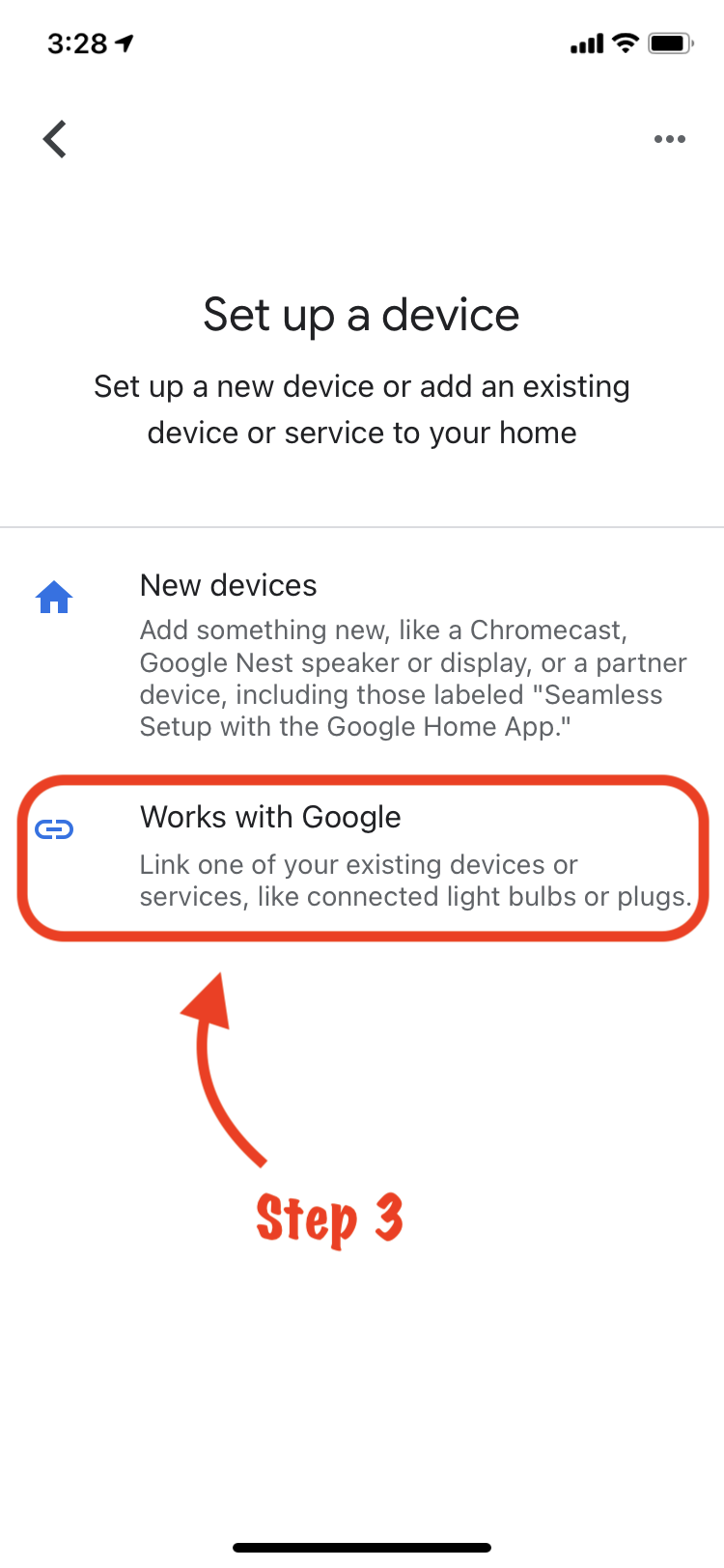
Select Works with Google.
-
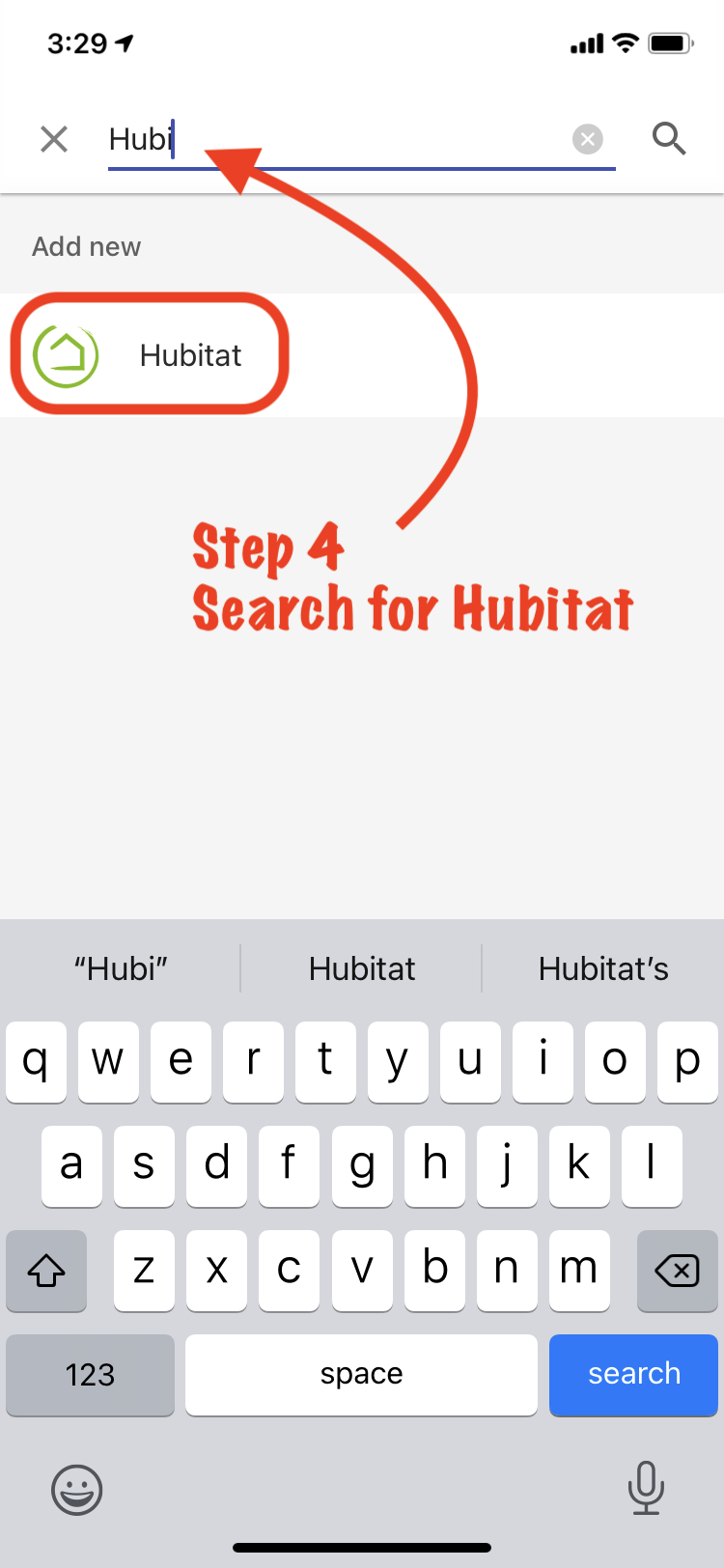
Search for and select Hubitat.
-
Follow the authentication process using the account information you used to register your hub.
- NOTE: Social media logins have been retired. You cannot use new portal or Hubitat Elevation apps with social logins. You must sign in with your Hubitat administrator email and password to authorize Google Home.
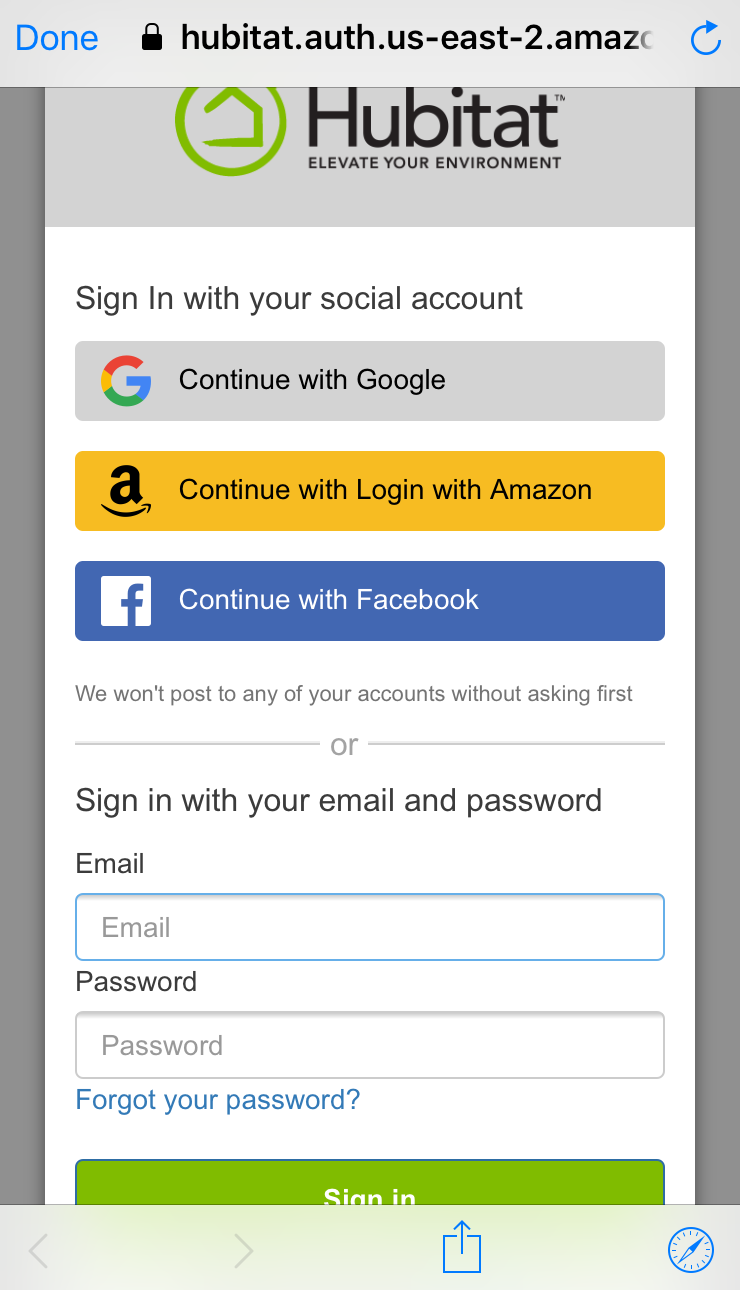
- NOTE: Social media logins have been retired. You cannot use new portal or Hubitat Elevation apps with social logins. You must sign in with your Hubitat administrator email and password to authorize Google Home.
-
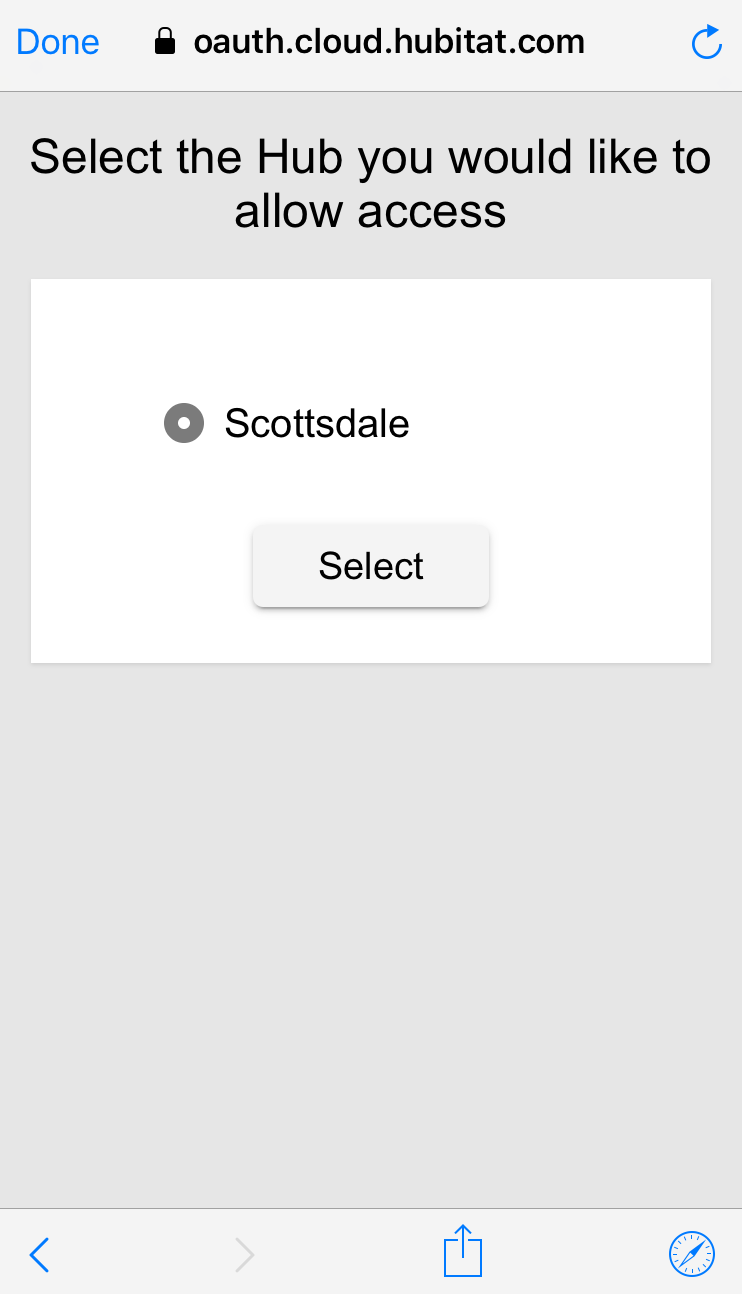
Choose your hub.
-
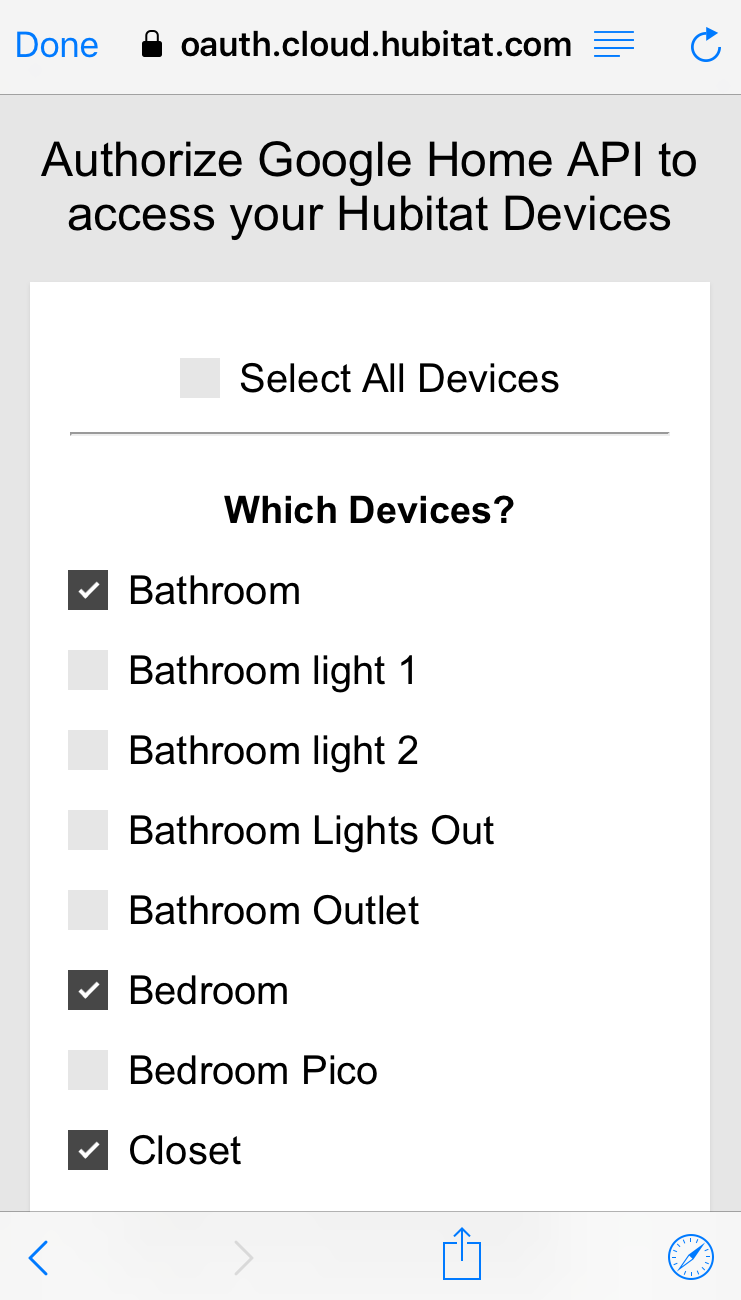
Select the devices you would like to authorize for used with Google Home and tap Authorize.
-
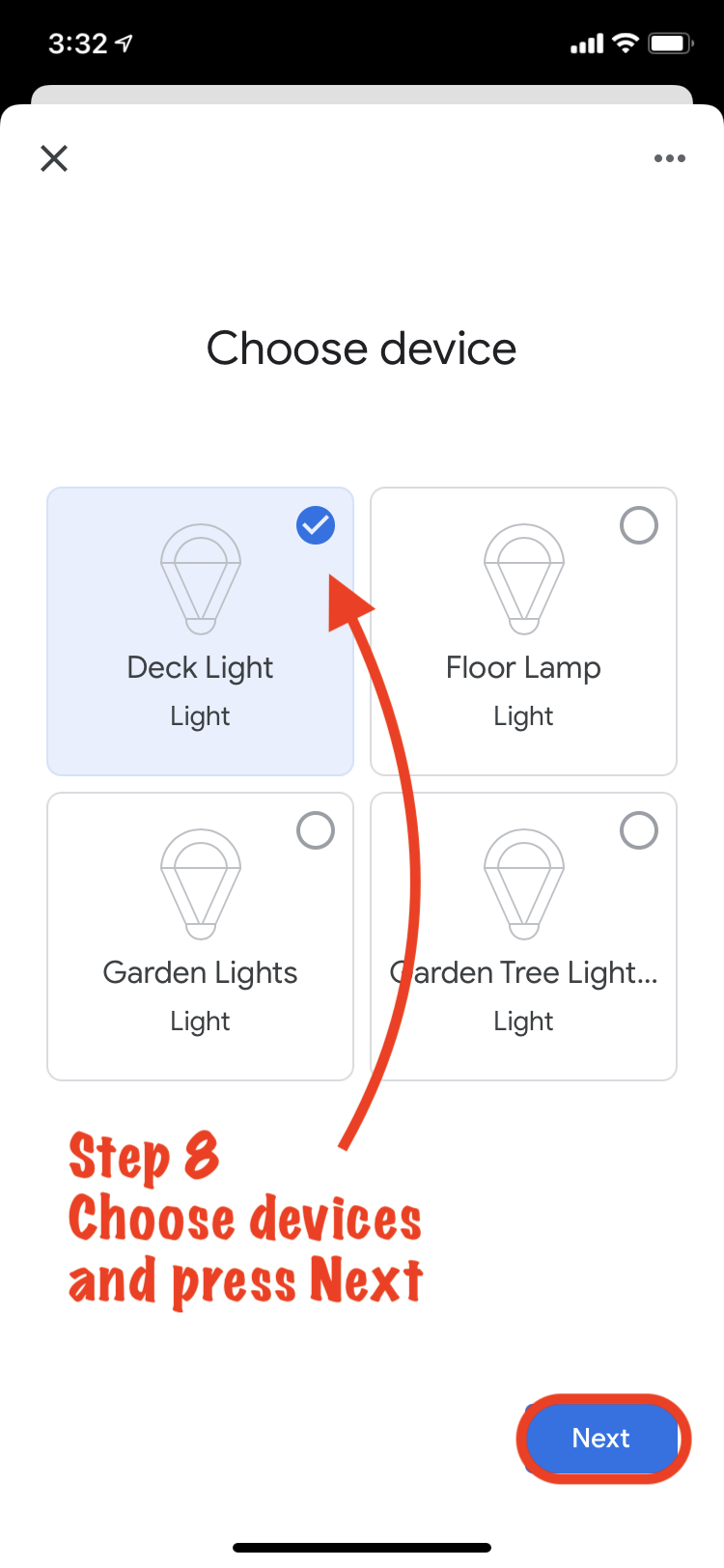
Choose a device to assign to a room in the next step
-
Confirm the home you wish to use.
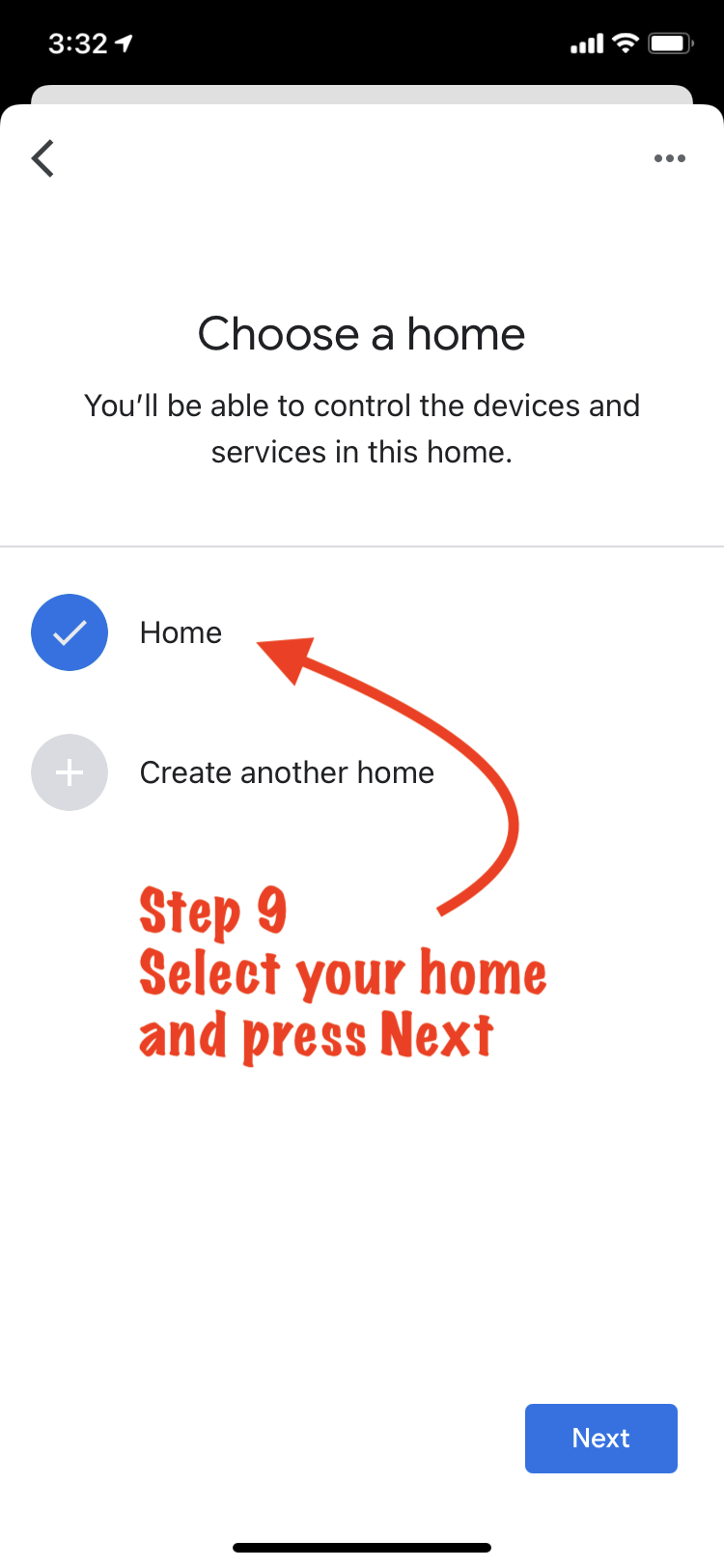
-
Select the room where the device resides
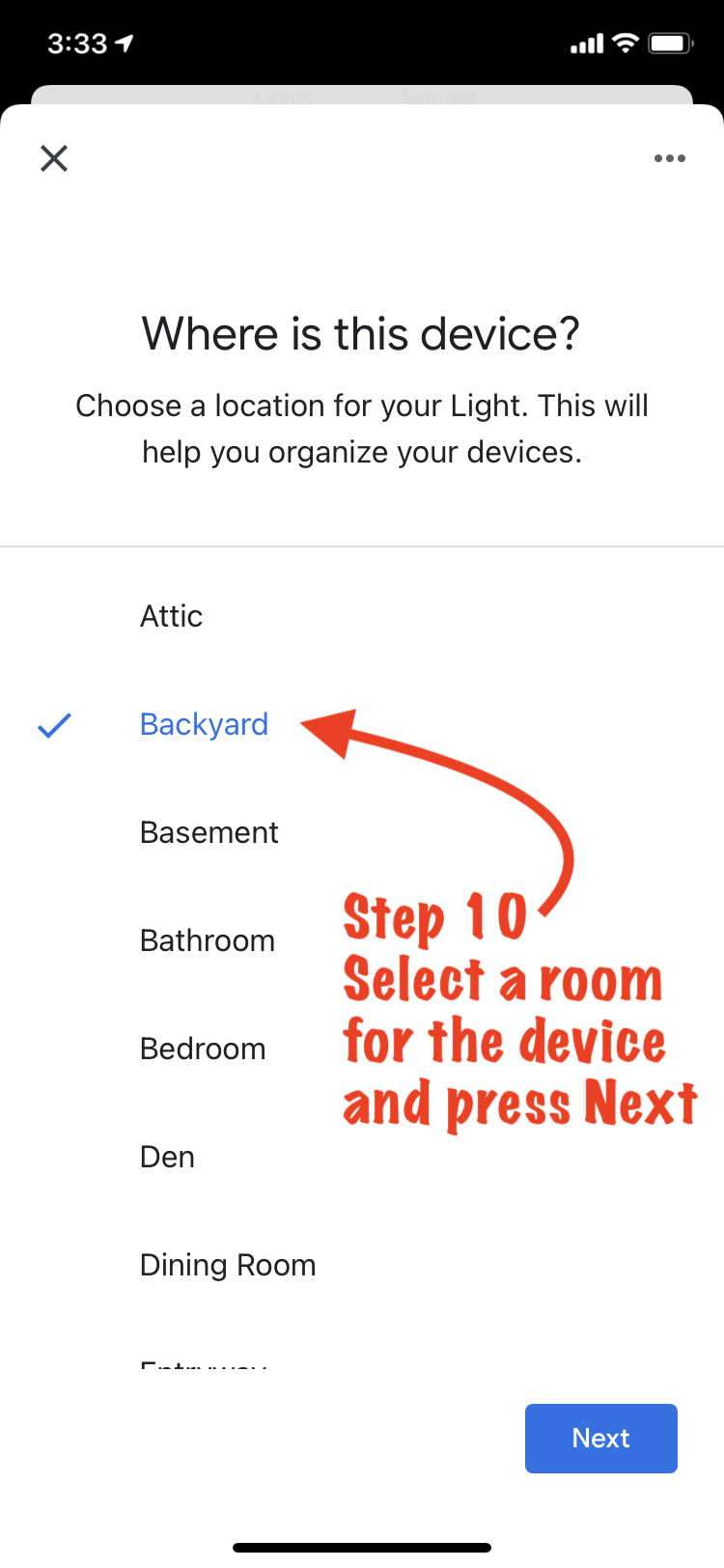
Your selected devices can now be controlled with your voice through your Google Home voice assistant or on your mobile device using the Google Assistant or Google Home apps.
Add or Remove Google Home devices
Once your Hubitat Elevation is connected to your Google Home account you can can add or remove devices from your Google Home system by using the Google Home app in your Hubitat Elevation hub.
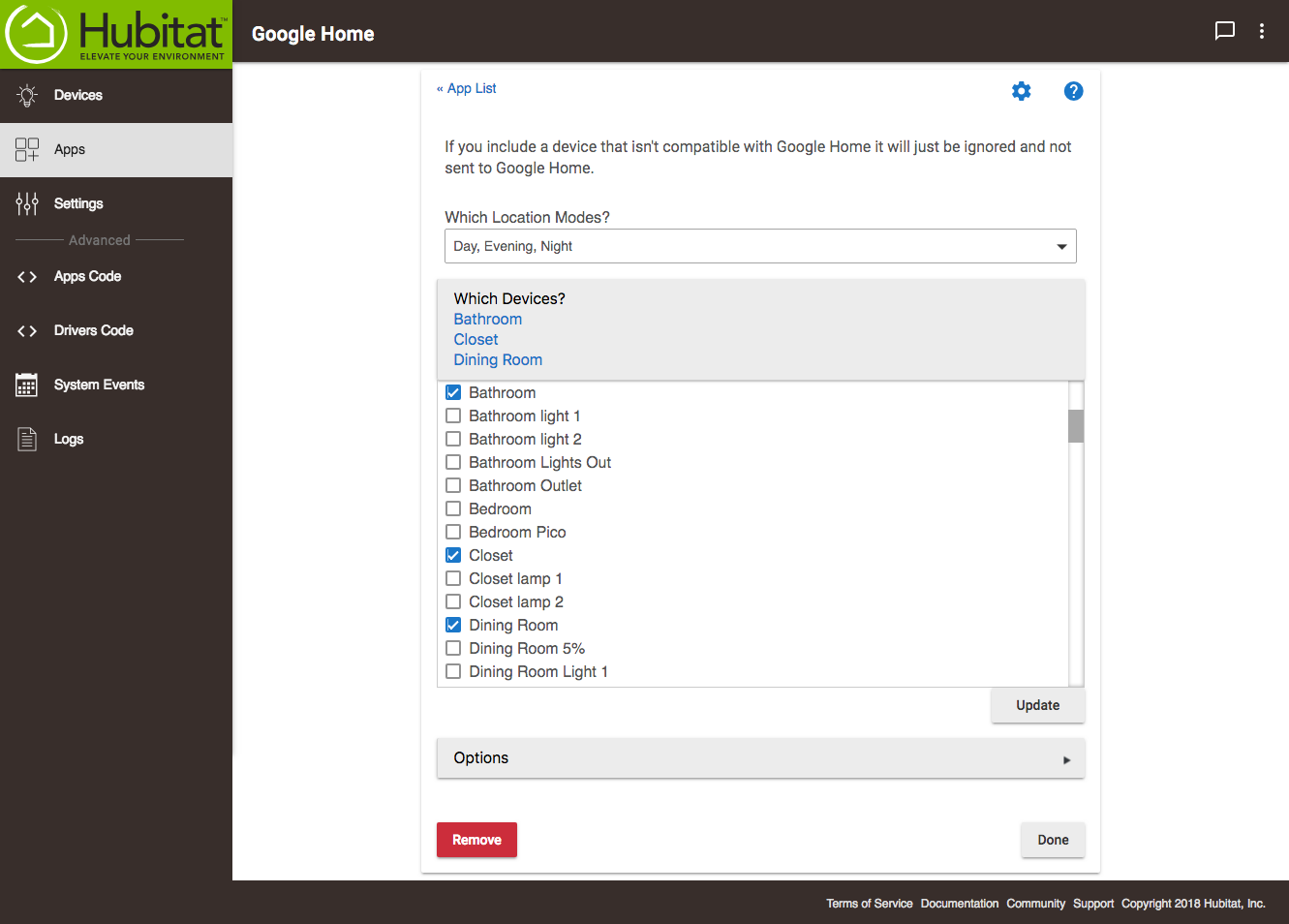
- From the sidebar of your hub, select Apps and then open the Google Home app.
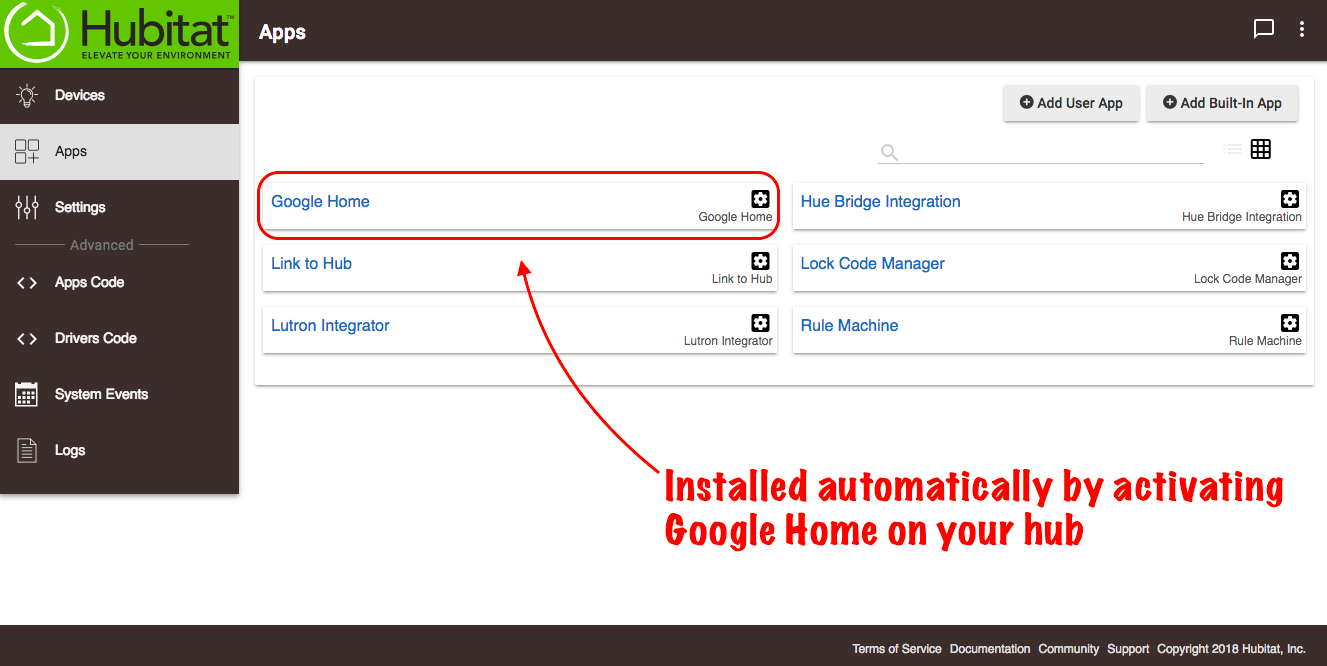
-
The Which Location Modes? dropdown lets you select any mode you would like to control with your Google Home.
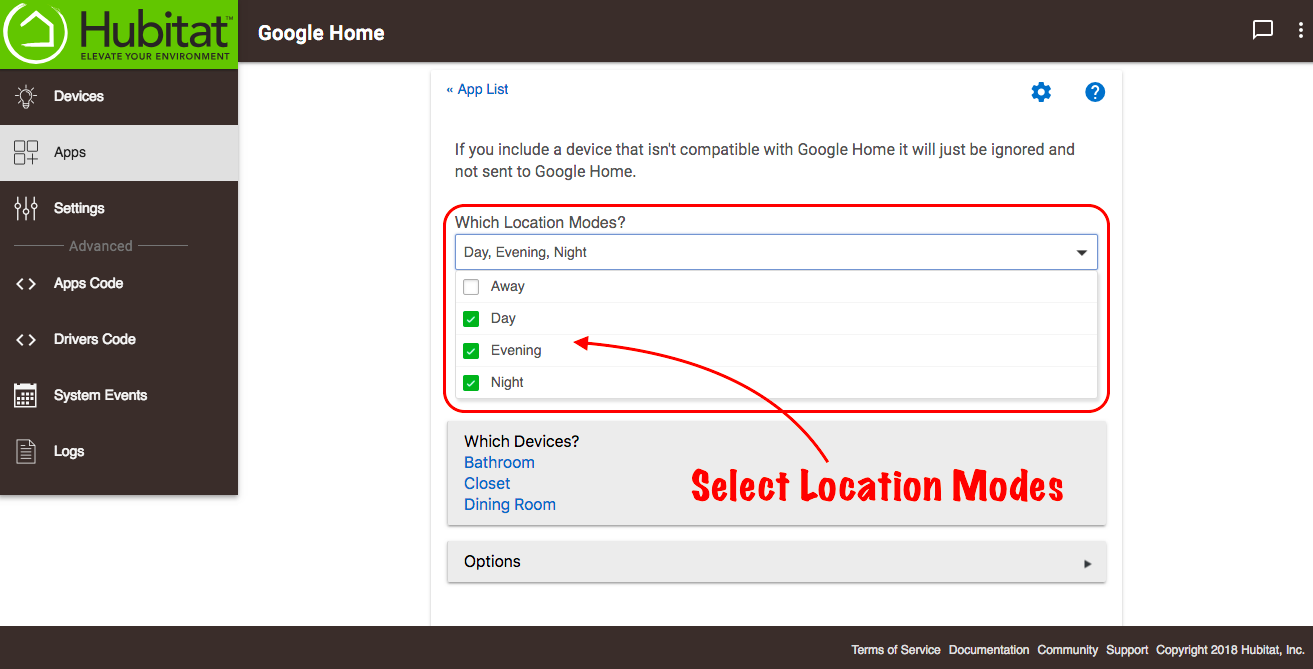
-
The Which Devices? box shows all of the devices currently connected to Google Home. Selecting the associated check box will allow you to select or remove any devices you would like to control with Google Home. When you are done selecting devices, choose Update.
-
When you are finished editing your devices, select Done.
- NOTE: The Options should be left at default for device offline polling