Mirror
Simple app designed to send commands to one or more "replica" (secondary) devices based on events from a "primary" device.
Mirror (App)
The Mirror app is a simple app designed to send commands to one or more "replica" (secondary) devices based on events from a "primary" device.
NOTE: The "mirroring" is one-way, from the primary device to the replica device(s). Only changes registered on the primary device will cause commands to be sent to the replica devices. Changing the replica devices will not cause any changes elsewhere (nor will running commands on the primary device that do not actually cause state changes or that do not correspond to one of the events listed as "forwarded" in the interface after all the devices are selected).
The Mirror app offers several different types of "child apps," depending on what your goals are.
Device Mirror (Mirror Me)
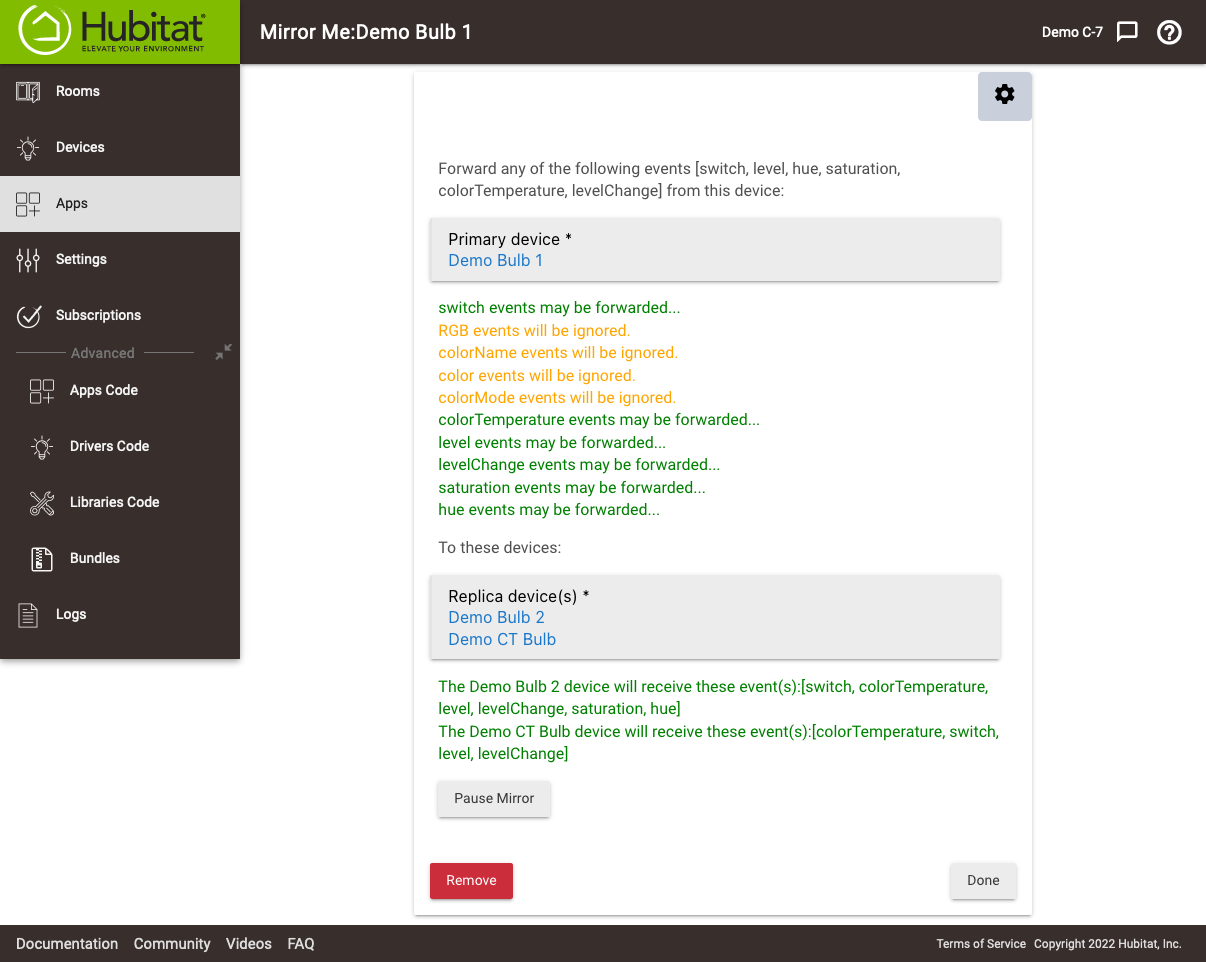
The "Device Mirror" type is intended for bulbs, dimmers, switches, and similar devices. Commands for switch, level, and color/color temperature will be sent to replica devices based on events generated on the primary device. It was specifically designed for use with certain remote controls that have color wheels or slider-type surfaces that internally track their state (the intent being that this app is used to mirror those states to bulbs, dimmers, etc.), but it can be used for any case where you want one or more devices to "follow" the reported state of another.
Select Create New Device Mirror... to create a Device Mirror setup (these child apps will be called "Mirror Me"), then configure it as desired. For example:
Lock Mirror
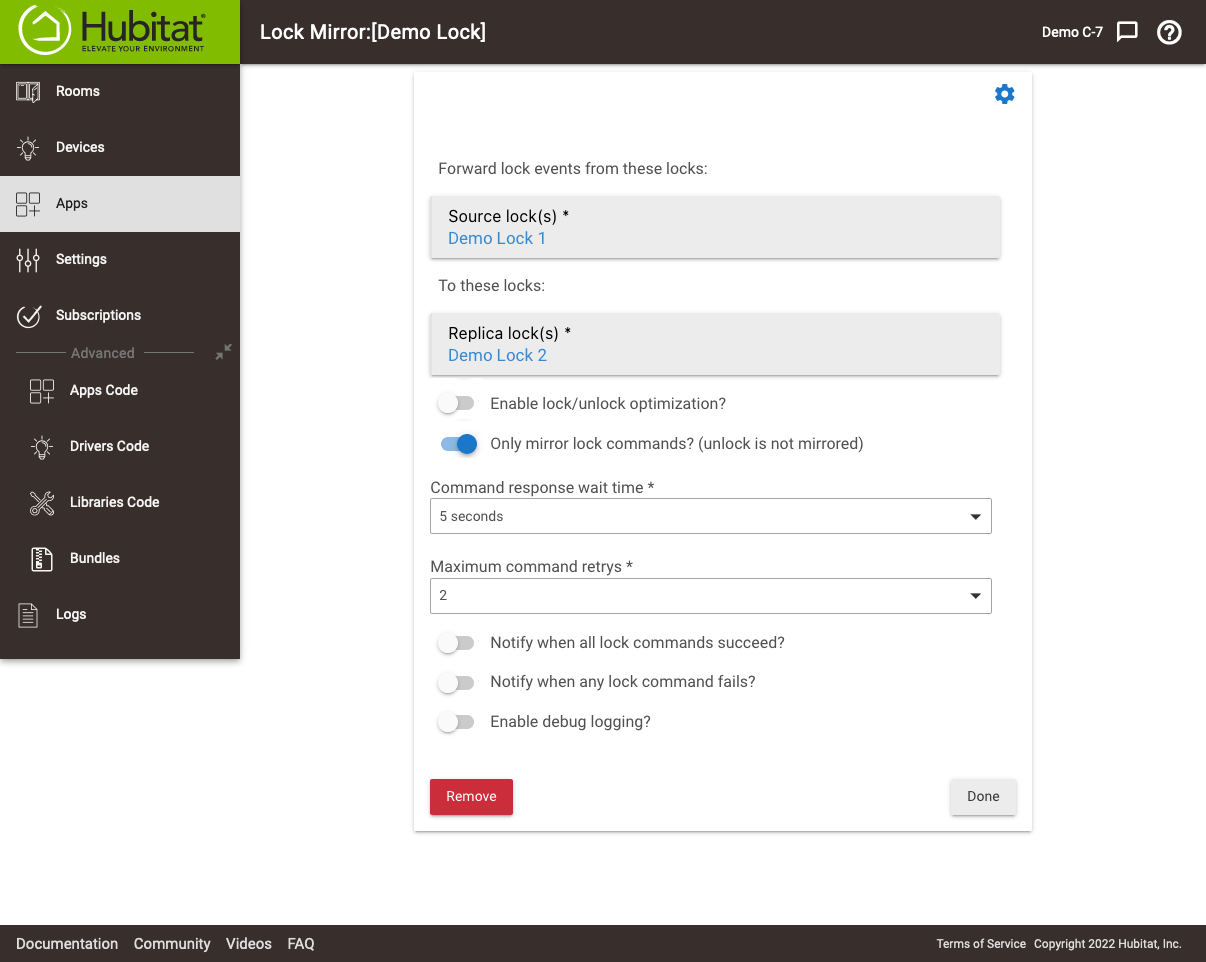
Select Create New Lock Mirror... to create a Lock Mirror setup to make one or more locks follow one or more other locks. This type of mirror is intended to send "Lock" or "Unlock" commands to the replica lock(s) based on events generated from the source lock(s) — e.g., when a source lock is unlocked and reports that event to the hub, an "Unlock" command will be sent to the replica locks, and similar with the "Lock" command.
Available options
- Enable lock/unlock optimization: if enabled, will not send "Unlock" command to any replica locks whose state on the hub is already reported as unlocked; similar for "Lock" command if the state is already reported as locked.
- Only mirror lock commands?: if enabled, only "Lock" commands will be sent to the replica lock(s). No commands will be sent to the replica locks when a source lock is unlocked, only when a source lock becomes locked.
- Command response wait time: number of seconds to wait before retrying a command if a "Lock" or "Unlock" command is sent to a replica lock and the replica lock does not report back a state suggesting that the command succeeded (this is the value of the
lockattribute you can see under "Current States" on the device detail page). - Maximum command retries: number of times to re-attempt sending "Lock" or "Unlock" commands to replica devices if their state does not update as expected (see above)
- Notify when all lock commands succeed?: allows you to specify a notification and/or speech (TTS) device to send notification or speech to when all replica locks successfully report the expected changes in response to an event from the source lock.
- Notify when any lock commands fails?: allows you to specify a notification and/or speech (TTS) device to send notification or speech to when any replica locks does not report the expected changes in response to an event from the source lock (after the specified maximum number of retries have happened; see above).
- Enable debug logging?: writes entries to Logs any time the app sends commands to replica devices; may be helpful if troubleshooting.
Media Input Mirror
Select Create New Media Input Source Mirror... to create a Media Input Source mirror setup to make one or more devices that support the "Set Media Input" command follow another such device. When the media source attribute on the source device changes, the replica device(s) will be sent a corresponding "Set Media Input" command to match. Optionally, additional commands can be sent to replica devices based on source device events, as described below.
Additional options:
- Mirror switch commands: Sends "On" or "Off" commands to replica device(s) based on "switch" events from source device.
- Mirror volume commands?: Sends volume commands to replica device(s) based on volume events from the source device.
- Volume mirror: Absolute and Volume mirror: Relative: This option determines whether the raw numeric value from the source device is used and sent to replica devices (absolute) or whether adjustments up/down on the replica devices from its existing volume are used (relative)
- Mirror mute commands?: If enabled, will send "Mute" and "Unmute" commands to replica device(s) based on mute status events from source device.
Custom Mirror
Select Create New Custom Mirror... to create a custom "mapping" from source device attributes to destination device commands. For example, a Custom Mirror can be used to:
- set a virtual motion sensor to "active" or "inactive" based on the open/closed state of a contact sensor
- set the window shade position of a window shade based on the level (dimmer) attribute from another device, e.g., a real or virtual dimmer
- any other combination of options the app provides!
Different "capability groups" are offered, and this is the first selection you will need to make when creating a custom mirror. The "Switch Level, Window Shade, Audio Volume" group type can be used to map a range of values, usually 0-100, to commands/attributes that also accept/report values in that range. The other group type can map any of several discrete values the device reports (e.g., motion active or inactive) to another set of discrete values (e.g., contact open or closed, presence present or not present, etc.).