Navigating the Hub Interface
How to get around in user interface for your Hubitat Elevation smart home hub
We believe that true home automation means your home just responds to you, without your needing to do anything other than just being there. Home automation doesn't mean giving up on manual control when you want it, but in not needing to control everything, it's easy to find yourself becoming quite comfortable with the experience. When something isn't automated, those things start to feel primitive and out of date.
Elevating your smart home with Hubitat Elevation means you can do so much more than just control devices from a smart phone or tablet. That's why we built Hubitat Elevation to be both accessible and configurable from a web browser on your phone, tablet or computer, giving you the freedom to choose the most convenient method.
When you're just getting started, setting up your home automations can be challenging if you only have a small screen to work from, so one of the easiest ways to get setup in no time is to work from a laptop or desktop computer. To help you navigate the hub user interface even faster, here are some shortcuts to make your experience even better. Some navigation is universal to the hub user interface, and some short cuts will vary based on the operating system you are using.
There is great time saving functionality built right into the hub. Here are a few that will help you quickly get around.
-
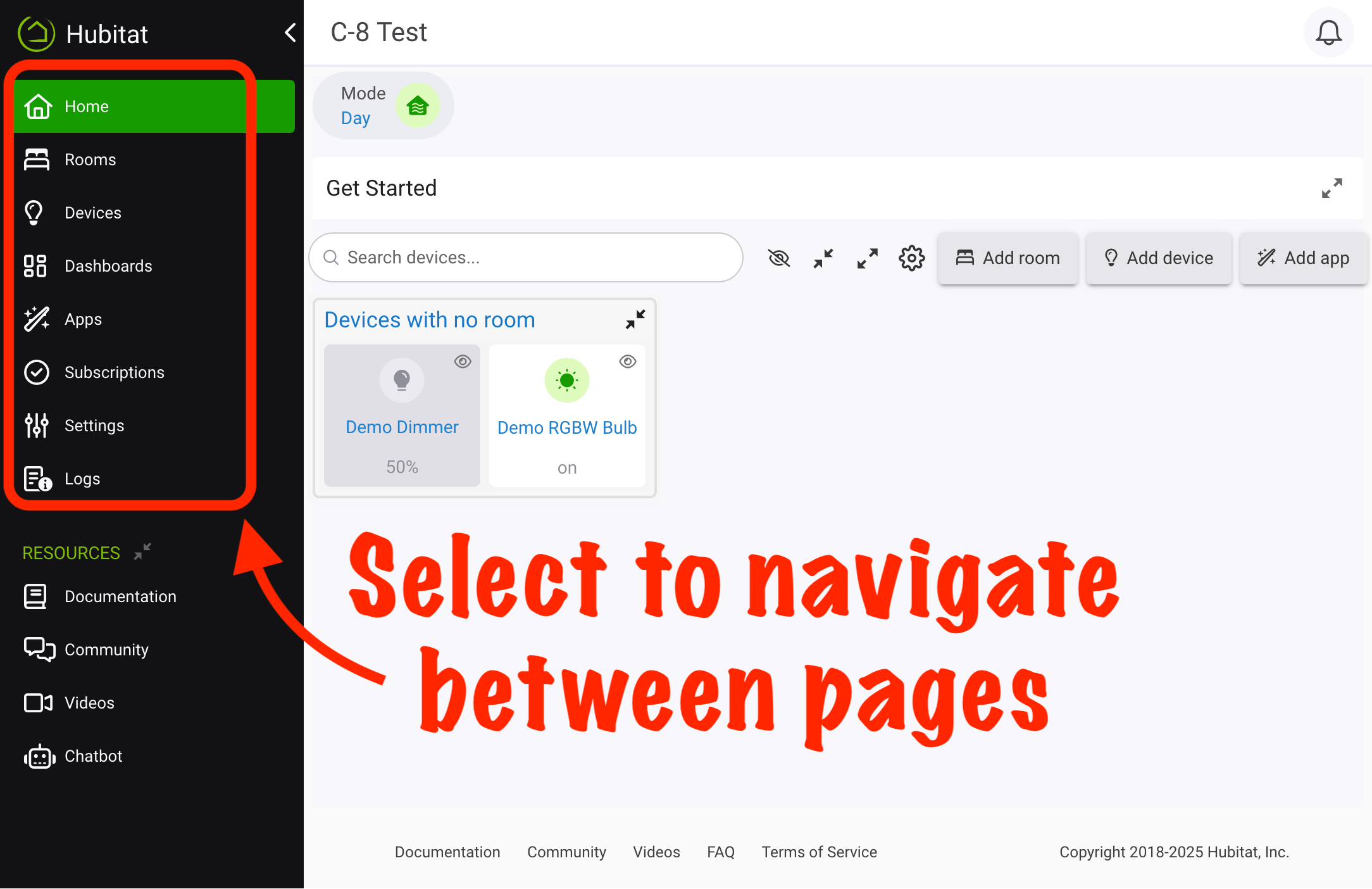
Selecting the icons in the sidebar will quickly move you between pages of the hub.
-
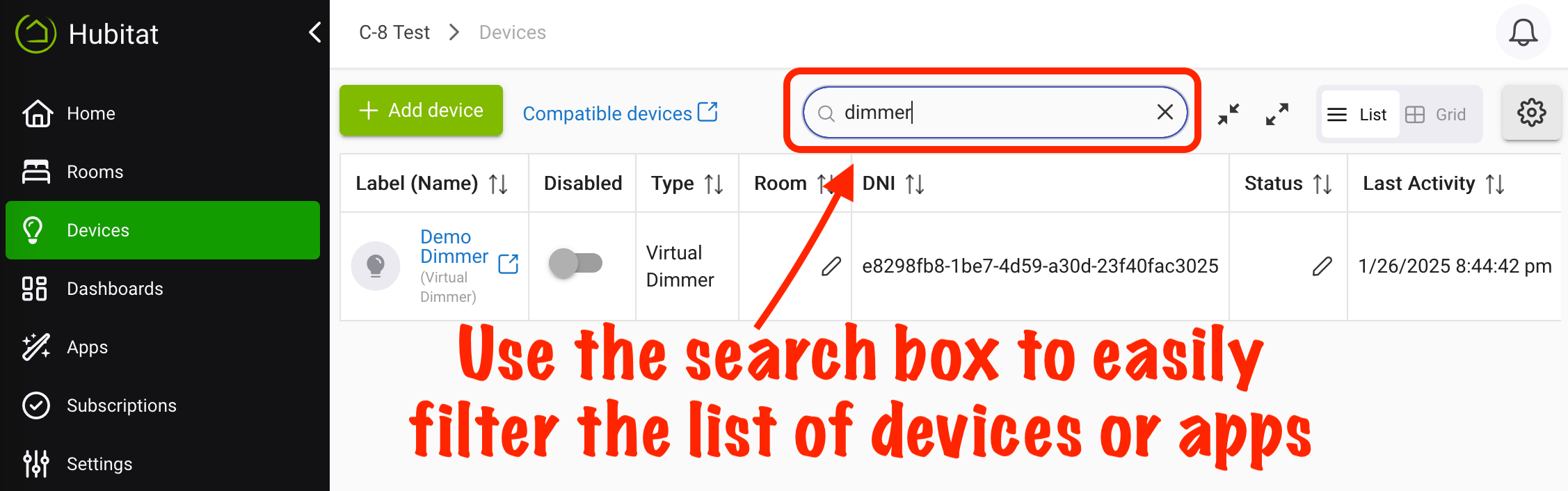
Use the built-in search function.
-
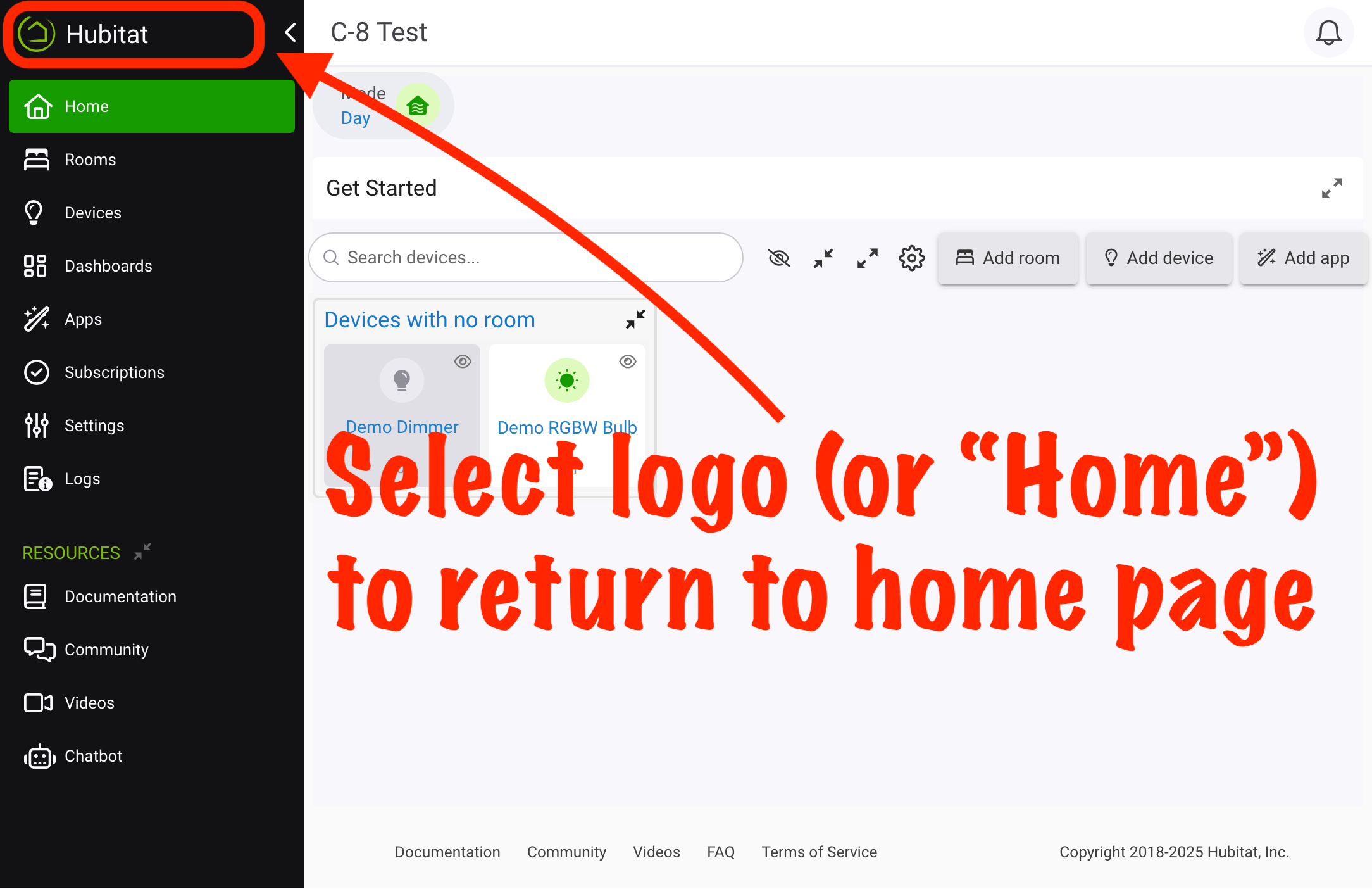
Press the Hubitat Elevation logo to return to the Main Menu page.
-
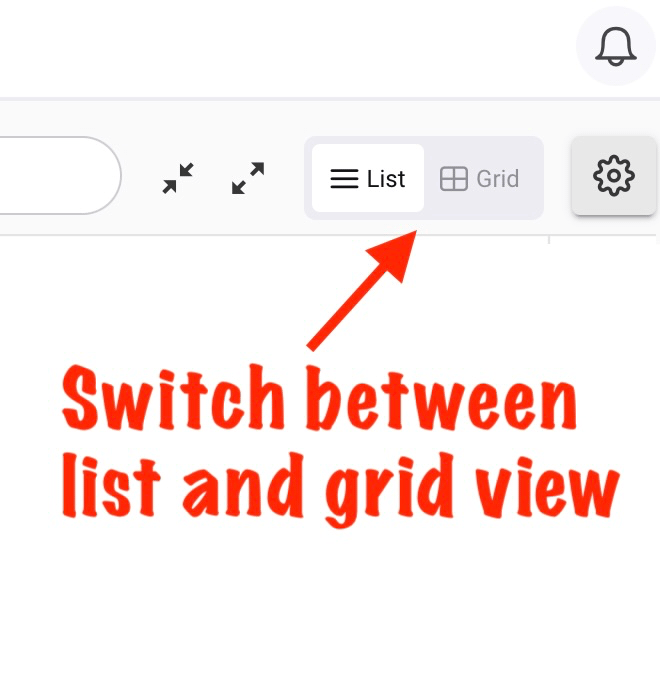
Change the view type and sorting order to suit your preferences.
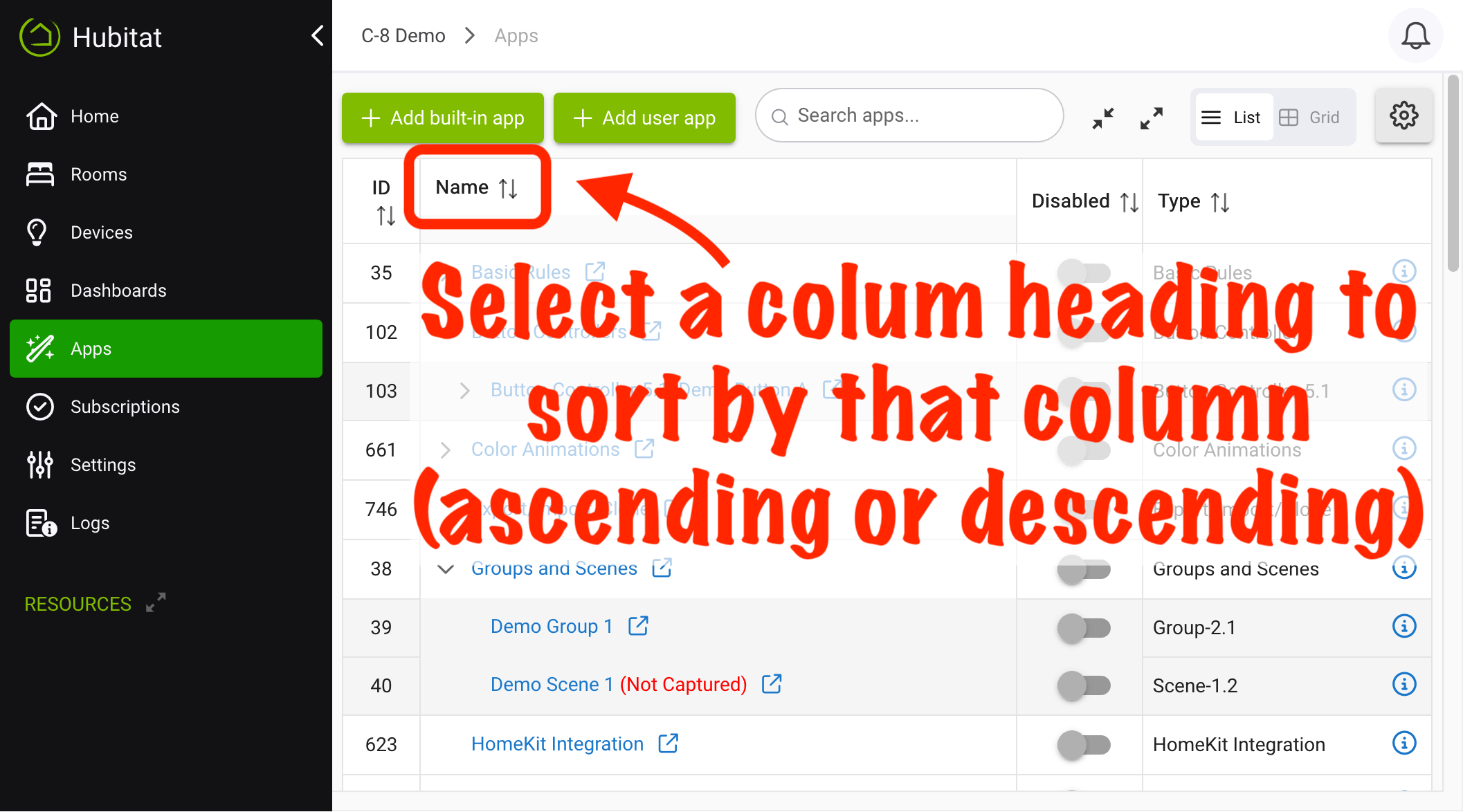
-
Know how to disable devices or apps you suspect are causing issues.
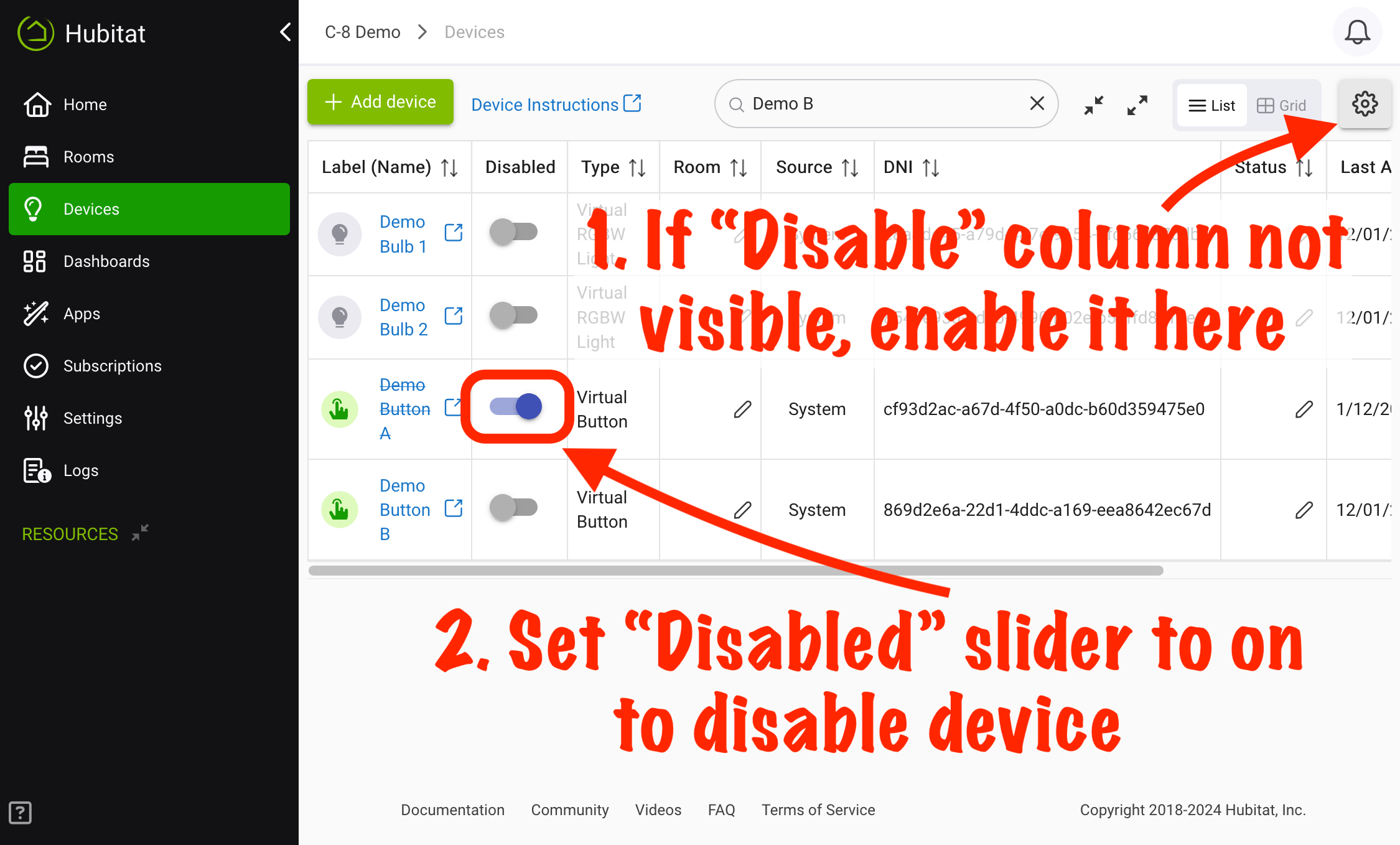
-
As you add devices, the list can grow quickly. The simplest way is to use the search function built into Hubitat Elevation, but if you're already further down a long device list, getting back to the search bar can take some time.
- To quickly return to the top of the list use the key combination Cmd + Up Arrow on Mac. On a Windows computer, use Ctrl + Left Arrow.
- To quickly navigate the the bottom of a list, use Cmd + Down Arrow on Mac. On a Windows computer, use Ctrl + Right Arrow.
- Your browser's built-in search feature (consult documentation for your browser, as this varies) is also an easy way to find specific text, including part of a device or app name, on the page.
-
Since Hubitat Elevation is web-based, using your web browser's forward and back arrows can be a fast way to navigate.
- On macOS, the keys are Cmd + Right Arrow to navigate forward and Cmd + Left Arrow to navigate backward in most browsers.
- On Windows, the keys are Ctrl + Right Arrow to navigate forward and Ctrl + Left Arrow to navigate backward in most browsers.
- NOTE: Make sure you're not navigating back to a page that displays the information prior to a change you just made. While this won't undo your change, it can get confusing to use the browser forward and back arrows in those situations.
-
Most changes within the hub user interface will update dynamically, while other changes may require you to press somewhere in the background or press an update button. However, if you're using the previously described method to move forward and backward in the browser, it's a good idea to refresh the page in order to ensure you have the most up-to-date information in front of you.
- Use Ctrl + R on Windows or Cmd + R on macOS.
-
Having multiple tabs open is convenient when you're troubleshooting. For example, you might have a problem device's details open in one tab and logs open in the other tab.
- To quickly cycle between tabs in Windows, use the Ctrl + Tab keyboard shortcut to switch to the next tab (to the right of your current tab) and Ctrl + Shift + Tab to move to the tab on left of your current tab.
- On macOS use Ctrl + Up Arrow to move to the tab on the right of your current tab, and Ctrl + Down Arrow to move to the tab on the left of your current tab.