Soft Reset
Learn how to perform a soft reset (and other resets) on your hub if needed
Soft Reset
What is a Soft Reset?
A soft reset erases the main database on your hub, which contains your settings, device list, custom code, and other configuration. It does not reset the Z-Wave or Zigbee radios. It is generally a safe procedure to perform, and if you download a backup and then restore it afterwards, your hub should function as before. If you suspect database corruption, a soft reset and restore can be a useful troubleshooting step.
Note on restoring backups: Restoring any database will also perform a soft reset as part of the process. So, for example, if your goal is to take a backup, perform a soft reset, and then restore that backup, you can save time by skipping the "manual" soft reset.
How to Perform a Soft Reset
-
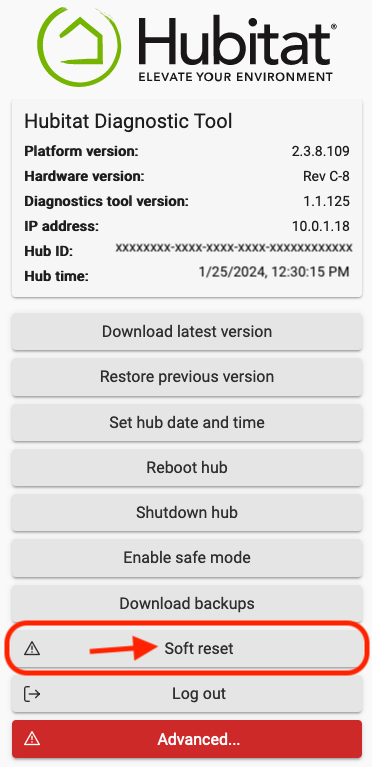
If your hub is functional, navigate to Settings > Diagnostic Tool.
- Alternatively, if cannot access the regular hub interface, navigate to http://[Your Hub IP]:8081. Replace [Your Hub IP] with the IP address of your hub. You must use the IP address and not a hostname.
- Either method will take you to the Hubitat Diagnostic Tool — there is no difference.
-
Log in with the MAC address of your hub, if prompted.
- This is available from Settings > Hub Details (if the regular hub interface is accessible) or from the sticker on the bottom of the hub.
- This is not case-sensitive but must include colons as separators (e.g., 34:E1:D1:80:12:34).
- This is the MAC address for the wired interface (not the Wi-Fi interface available on certain hub models)
-
Select the Soft Reset option:
-
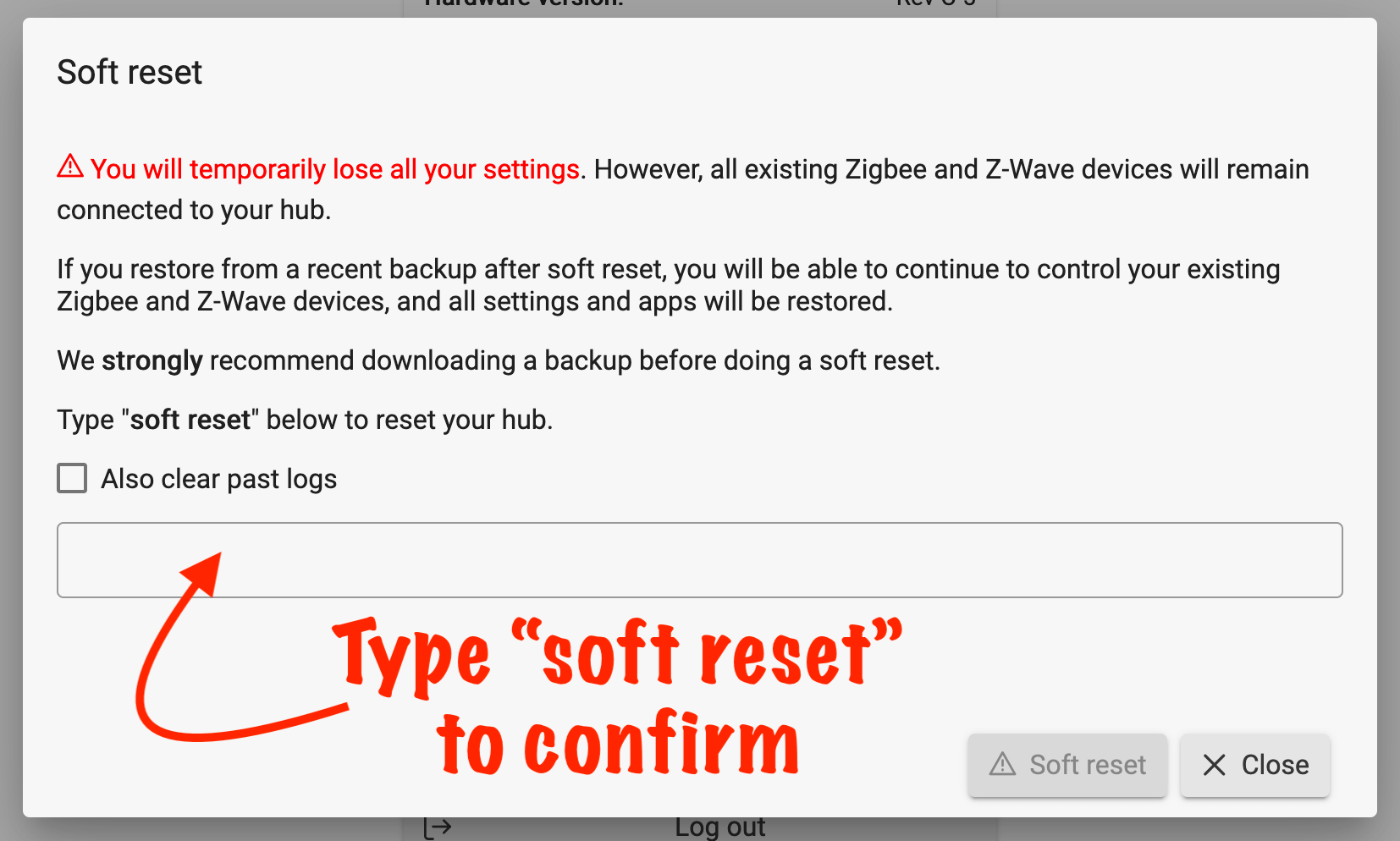
Type soft reset in the box to confirm, and select Soft reset to begin.
-
Once the soft reset has completed, the hub will restart, and you will automatically be redirected to the setup page.
TIP: If you want to perform a backup, soft reset, and restore all of your current database to the same hub, you can save a bit of time: navigate to Settings > Reboot, and select the Rebuild database on reboot option to perform all of these steps automatically in addition to the reboot.
Restoring a Previous Database
The following two steps are required if you are restoring previous hub settings from a backup.
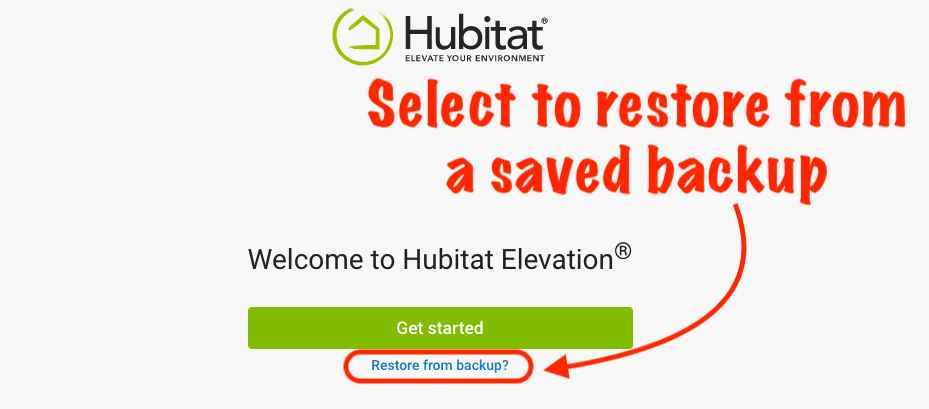
- Select the Restore from Backup? link at the bottom of the "Get Started" page when the hub reboots following the soft reset.
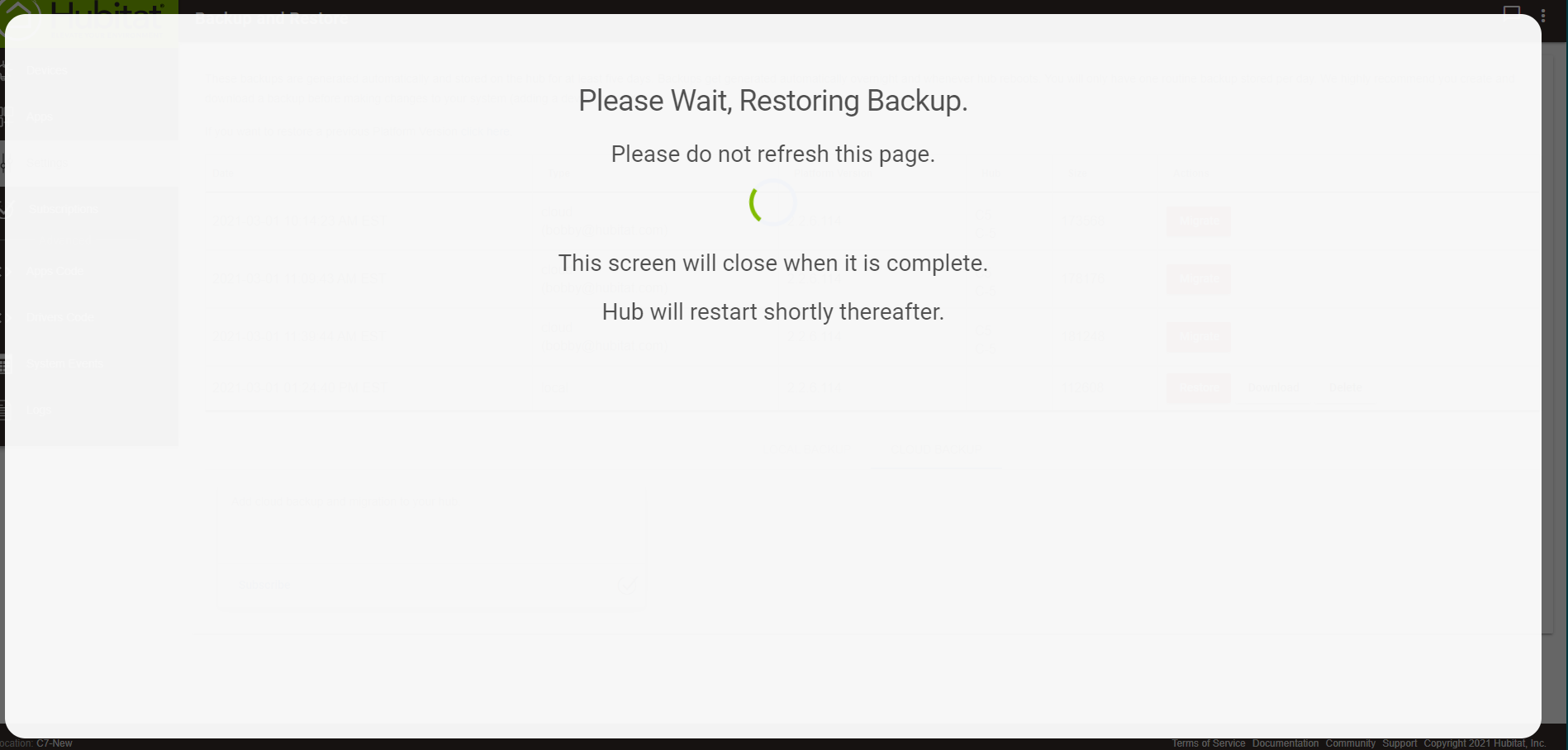
- Follow the prompts to restore the database, or see How to Restore from Local Backup for more information.
- Select Settings page in the sidebar.
- Select Reboot.
NOTE: Database backups do not include File Manager files. These should be backed up and restored separately, if so desired.
What About a "Full Reset"?
First, consider why you are thinking of performing this step. If you have a misbehaving device, for example, it is better to troubleshoot the device (or app, etc.). The Hubitat Community or support team, who are also active in the Community, can help.
If you still want to proceed, you can perform the following:
- If you have a Hub Protect, Cloud Backup, or Remote Admin subscription associated with your old hub, move that service to another registered hub or cancel the subscription. (A full reset is not available for hubs with active subscriptions, but see below for more ideas.)
- Navigate to Settings > Diagnostic Tool.
- Select Advanced..., then select Full Reset. Read and confirm your understanding of all the warning prompts by selecting the appropriate buttons.
NOTE: If you do not see an Advanced... button, your Diagnostic Tool may be out-of-date. It should update on its own within a day or two (if connected to the Internet), or visit the Diagnostic Tool documentation to see how to perform a manual update.
This will reset the Zigbee and Z-Wave radios, remove your hub database (including all devices and settings), hub registration, and logs. Note that after a full reset, restoring a local backup will not fully restore your hub to previous functionality.
A full reset will not delete any Hubitat accounts you have created, although it will un-register your hub (you can use the same account to register a new hub or the same hub in the future). To remove your account, visit support.hubitat,com.
A full reset will require re-pairing all devices, even if a database backup is restored (except for Hub Protect or Cloud Backup backups). Perform these steps after careful consideration only.
Full Reset Alternatives
In most cases, a full reset is not necessary. In other cases (e.g., if you have an active Hub Protect subscription and do not wish to transfer or cancel it), it cannot be done at all. However, you can achieve the same results by manually performing any necessary steps:
- Navigate to Settings > Diagnostic Tool.
- Select Advanced... to display more options. Read and confirm your understanding of all the warning prompts by selecting the appropriate buttons.
- Select Reset Zigbee Radio.
- Select Reset Z-Wave Radio.
- If using Matter (and you wish to erase Matter configuration), navigate to Settings > Matter Details, change the URL ending with
/hub/matterDetailsto/hub/matterDetails?fullui=true, and select Reset Matter there. - Remove any files from Settings > File Manager or Apps > Device Firmware Updater (if you used either of these features).
- Remove any local backups from Settings > Backup and Restore if you wish to remove them from the hub.
- If you have configured non-default network settings on the hub in Settings > Network Setup, such as a static IP or Wi-Fi configuration, undo them or perform network reset.
- If desired, de-register your hub using the "de-register hub" option under Registered Hubs at my.hubitat.com (note that the hub must be currently connected to the Internet for this option to appear, and the hub cannot have any active subscriptions).
- From the Diagnostic Tool, perform a soft reset as described above.
Like a full reset, these extra steps are not necessary in most cases and will require re-pairing all devices, even if a database backup is restored (except for Hub Protect or Cloud Backup backups). Perform these steps after careful consideration only.