Check for Updates
Check for Updates (How to Update Your Hub)
To check for platform updates on your hub or apply an available platform update:
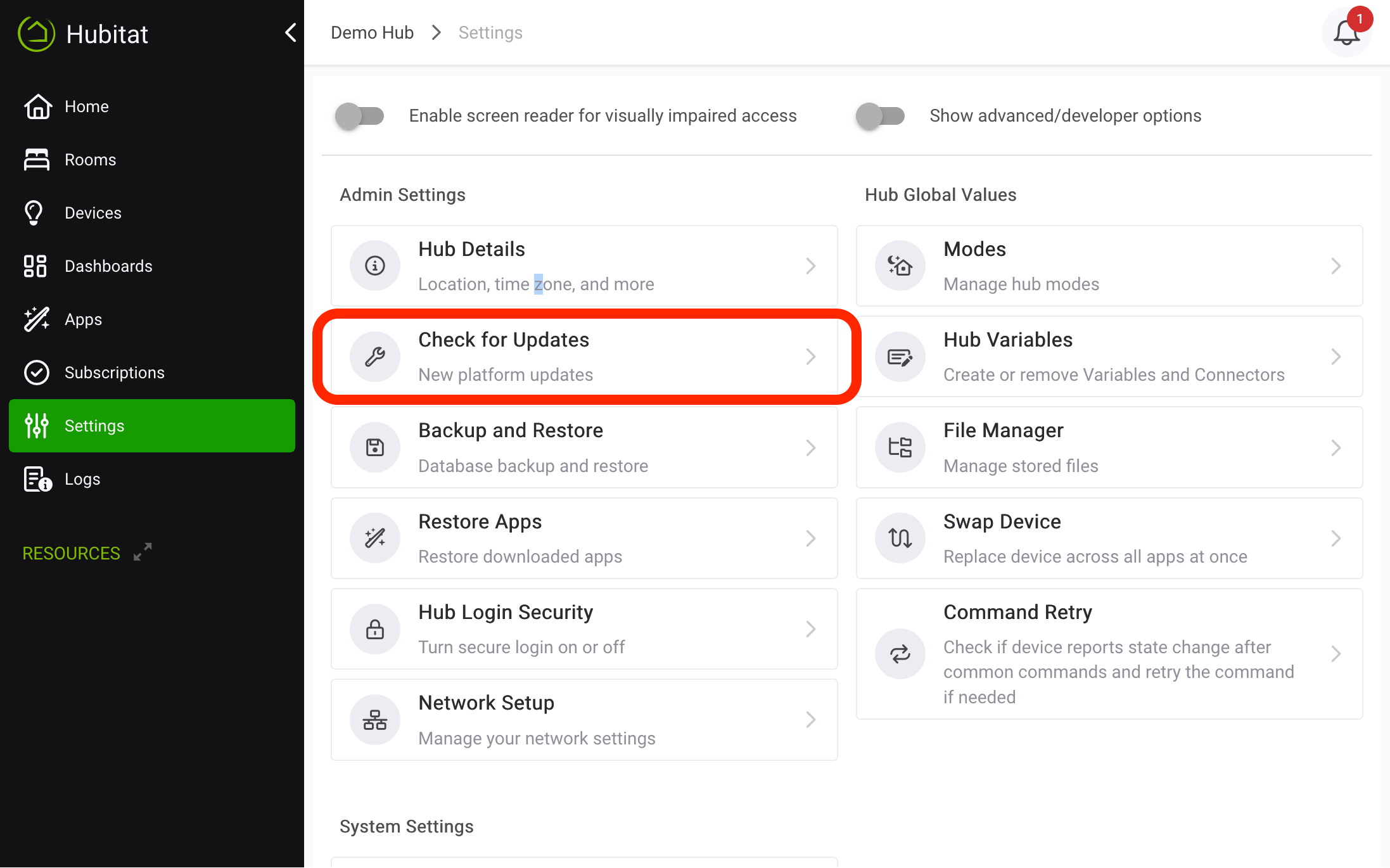
- Select Settings in the sidebar of your hub, then select the Check for Updates item.
TIP: If a red circle with a number over the system message icon appears in the upper right of any page in the hub interface, an unread system message is available to read. This may be a platform update:
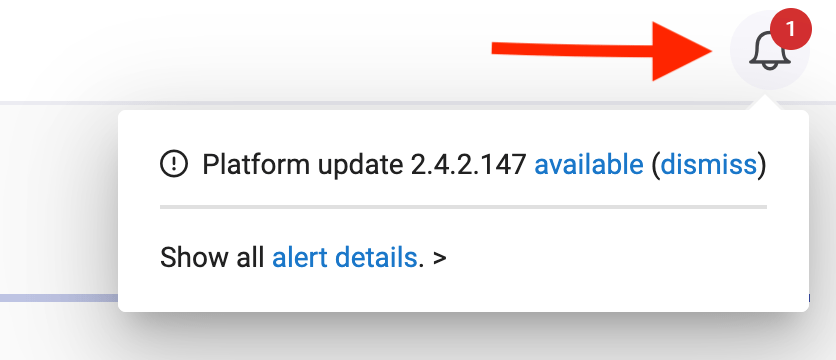
In this case, you can skip the step of manually checking in Settings. Instead, select the message icon, then select the Available to download link. (Or select dismiss to ignore the notification for this available update.)
- It is strongly recommended to download a backup before updating:
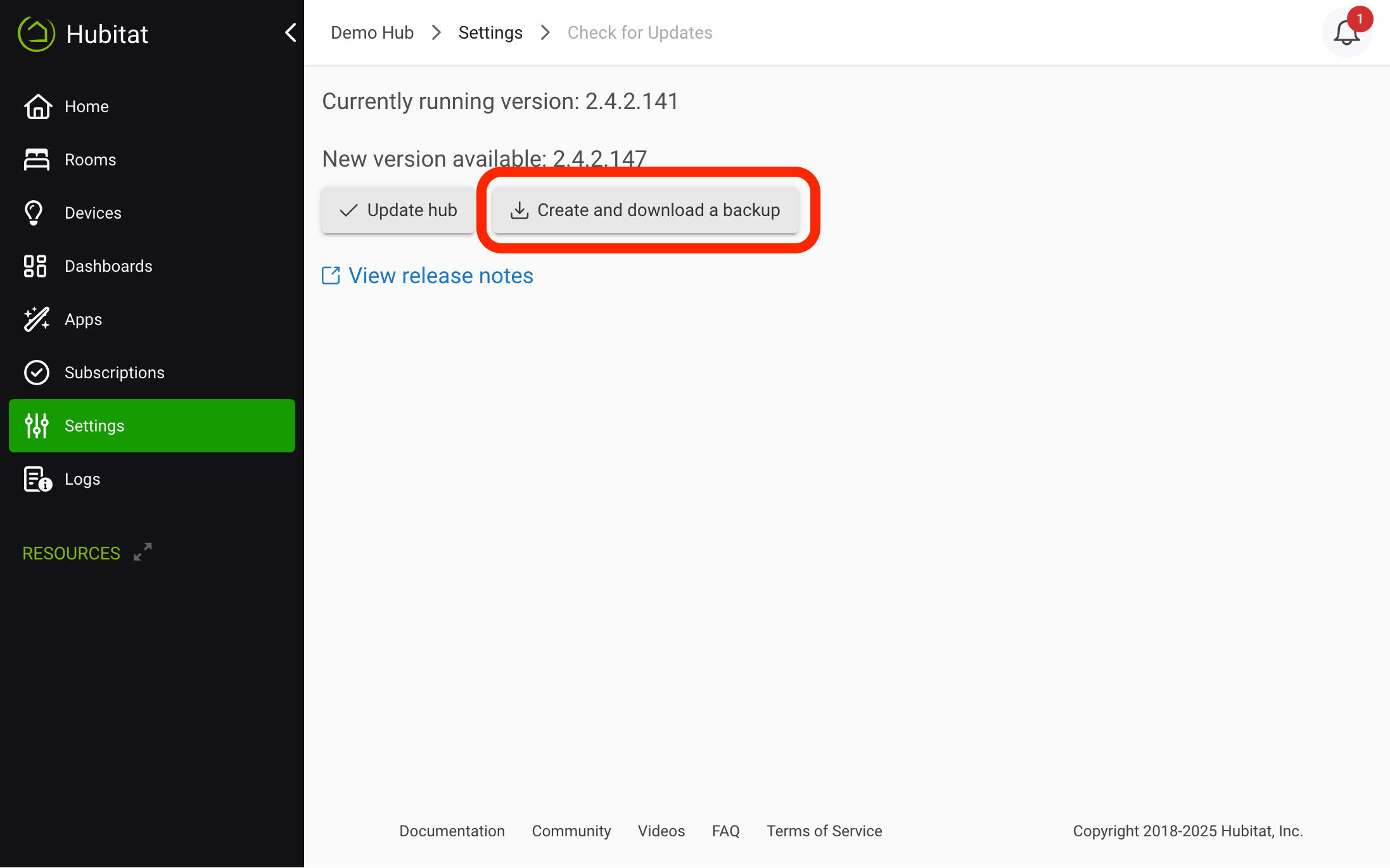
NOTE: It is not mandatory that you update your hub, though it is recommended for new features and fixes. The choice — if and when — is yours alone. It is recommended to view the release notes before upgrading, which you can access from the Release Notes link on this settings page or at a later time by visiting the Release Notes category in the Community forum.
-
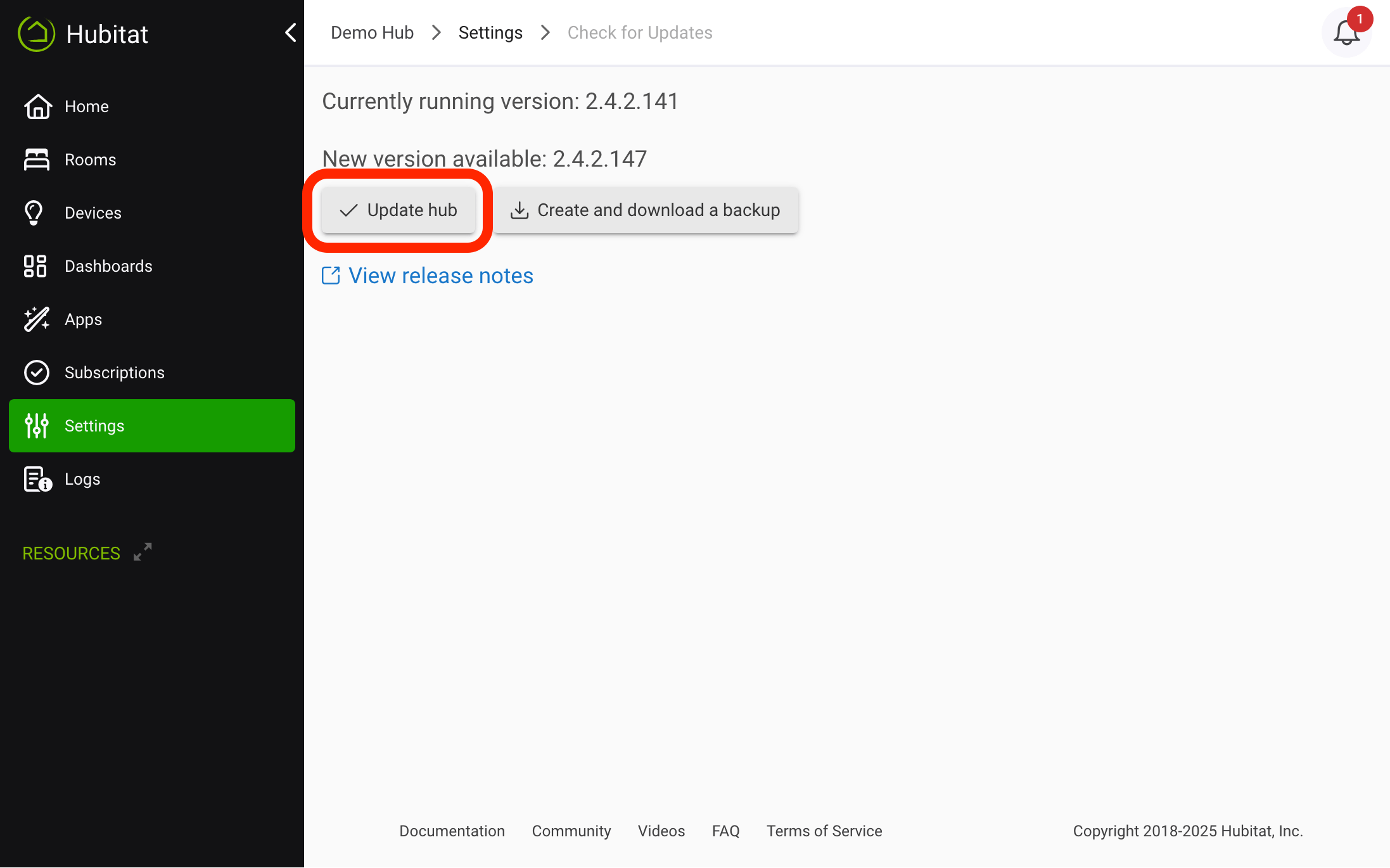
Select Update Hub.
-
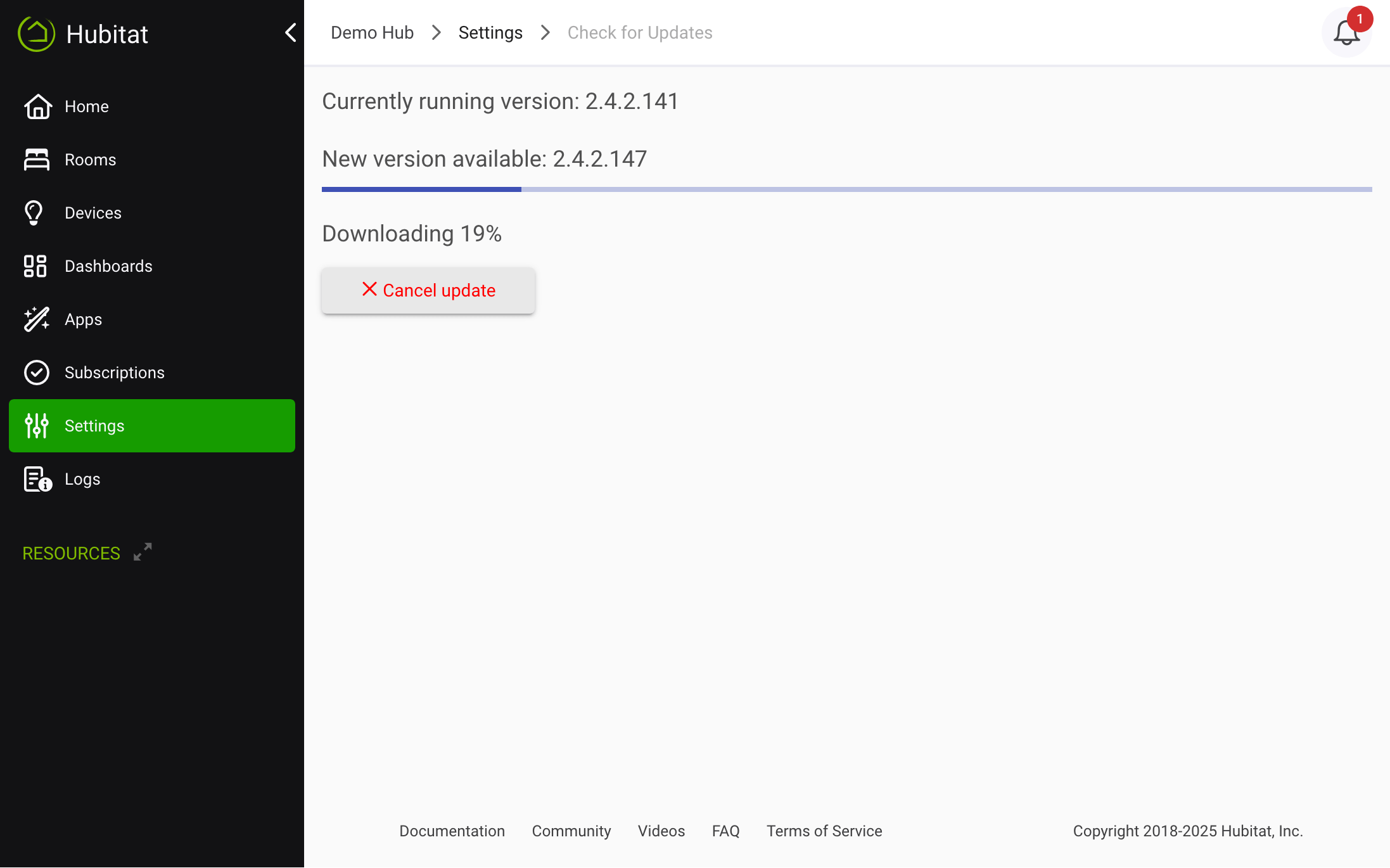
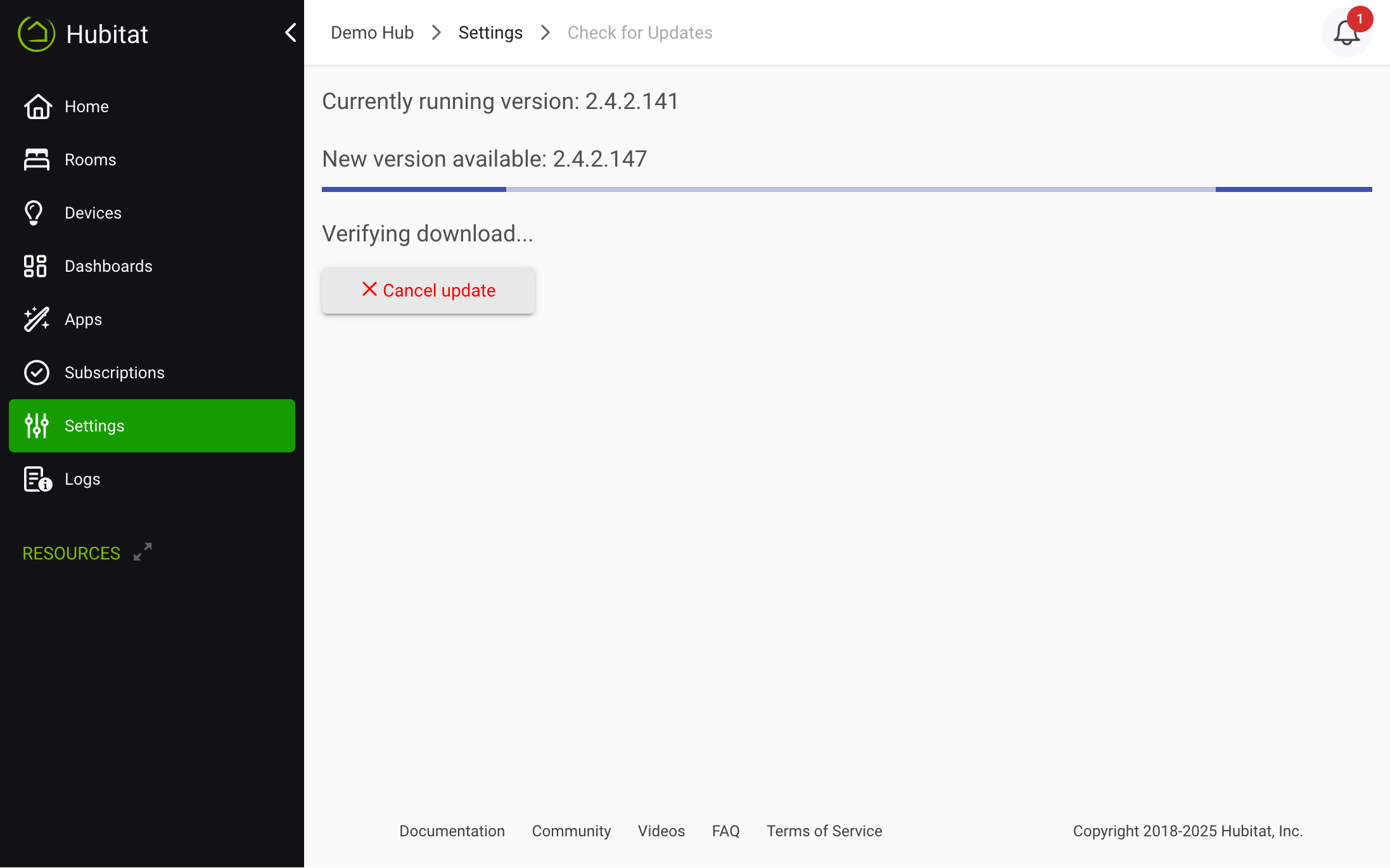
Confirm agreement to the Terms of Service, and wait for the process to complete.
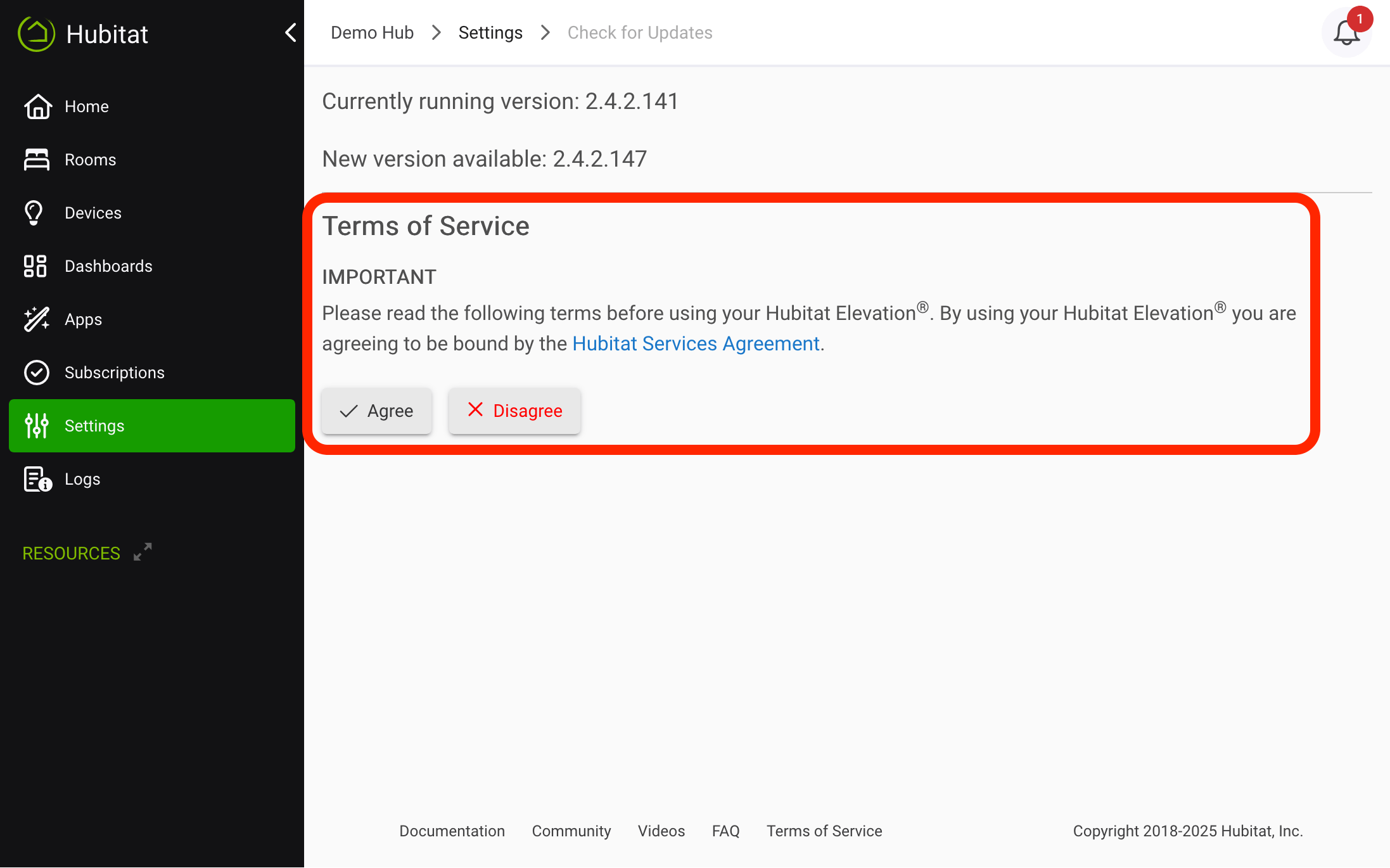
-
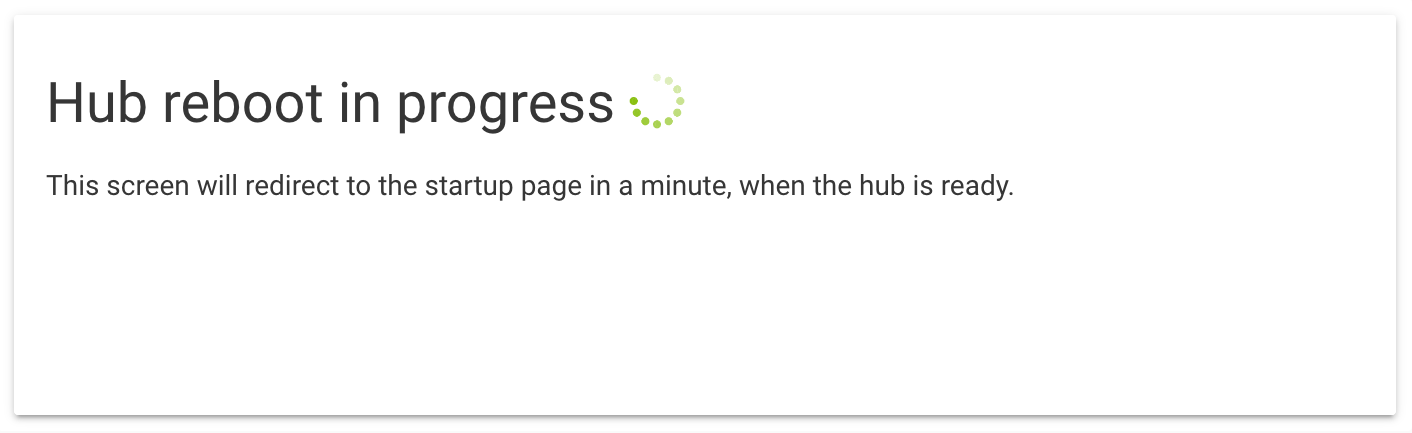
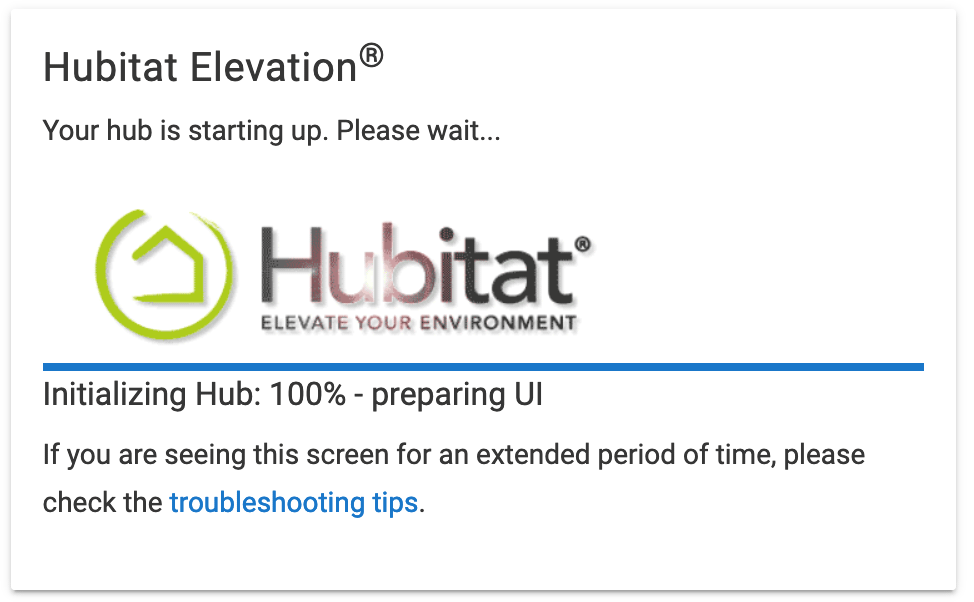
Your hub will automatically reboot after the update is installed. (You may close the above page after the Downloading... status appears, or remain on the page to monitor progress.)
Problems Updating?
If the "Check for Updates" process never finishes:
- Make sure your hub has an Internet connection. Try the network test utility on the Network Setup page to verify Internet connectivity.
- Try a reboot of the hub from Settings > Reboot, then try the update again
If the regular hub interface does not appear after updating:
- Did your hub IP address change? See if http://findmyhub.hubitat.com can discover your hub.
- Is the Diagnostic Tool accessible? See Diagnostic Tool for more information. From the Diagnostic Tool, you could try:
- a simple reboot of the hub
- downloading a backup (first), performing a soft reset (second), and then restoring that backup after the hub comes back up
- restoring the previous platform version if you believe there is a problem with the new/current version